
Menu bar app · $2.99, one-time
Scroll Direction Helper
Change your mouse scroll direction without changing your trackpad.
macOS has one scroll direction setting, Natural scrolling, and your mouse and trackpad share it. Turn it on for the trackpad and your mouse wheel scrolls backwards; turn it off for the mouse and the trackpad turns against you.
Scroll Direction Helper sits in your menu bar and reverses only the device that needs it — in effect, natural scrolling turned off for the mouse only. Your trackpad keeps natural scrolling, your mouse wheel scrolls the classic way, and you never open System Settings to flip the switch again.
Features
What Scroll Direction Helper does
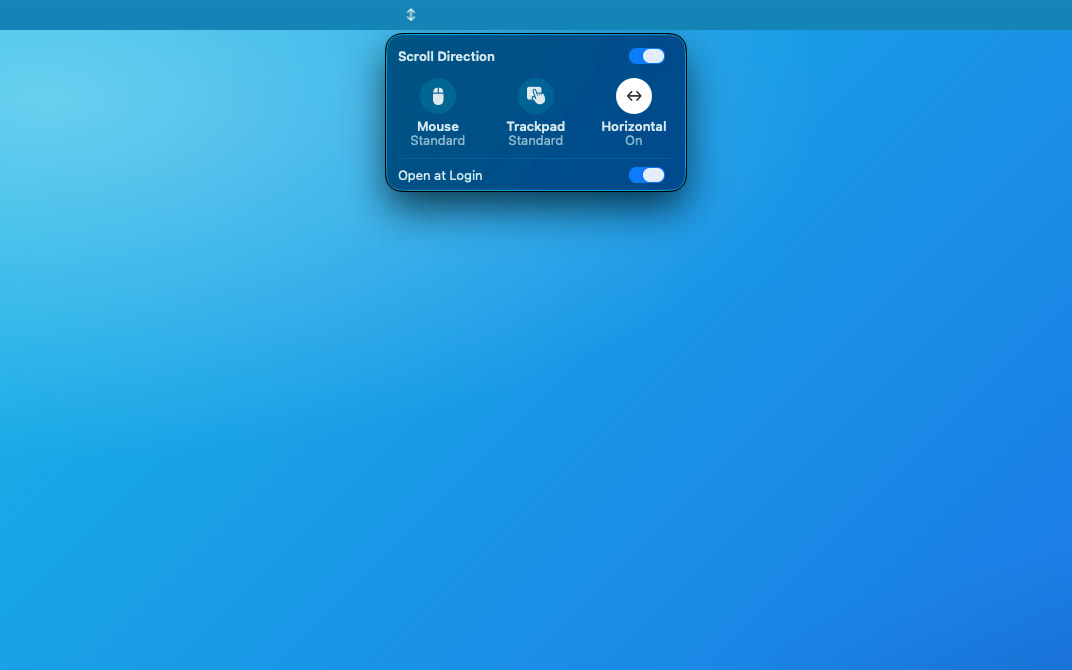
Separate mouse and trackpad scrolling
Set a separate scroll direction for the mouse and the trackpad: natural or classic for each. Out of the box, the mouse scrolls classically and the trackpad naturally.
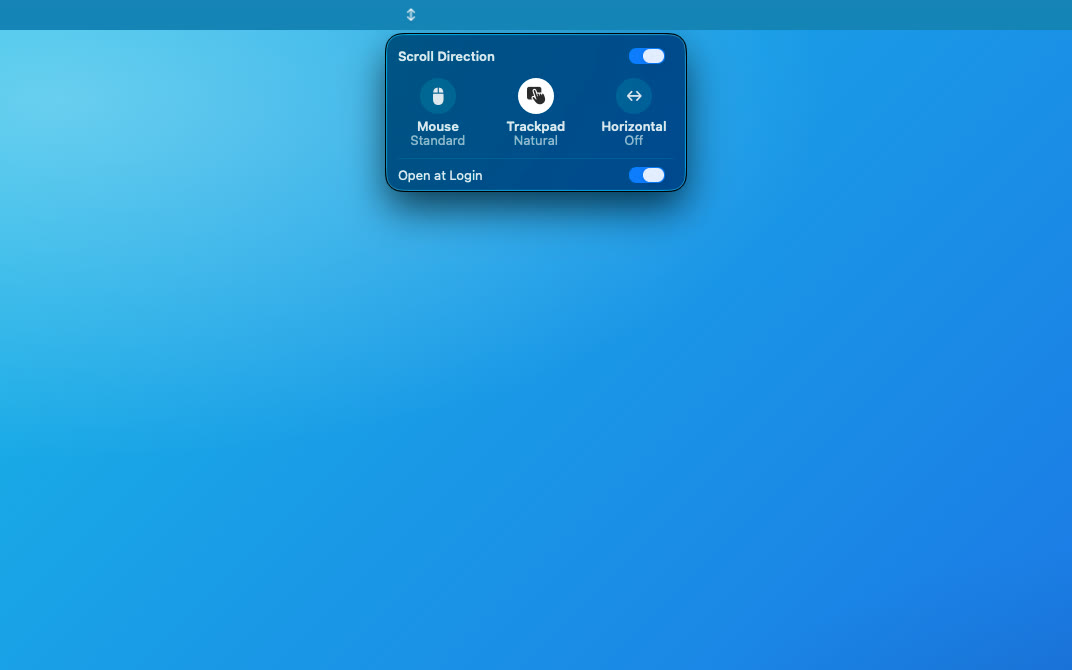
Sideways too
Horizontal scrolling follows the same rule, or switch it off and leave sideways scrolling as macOS has it.
Knows which is which
Trackpad gestures and momentum are told apart from mouse wheels — including smooth, high-resolution wheels — with a setting for wheels that behave unusually.
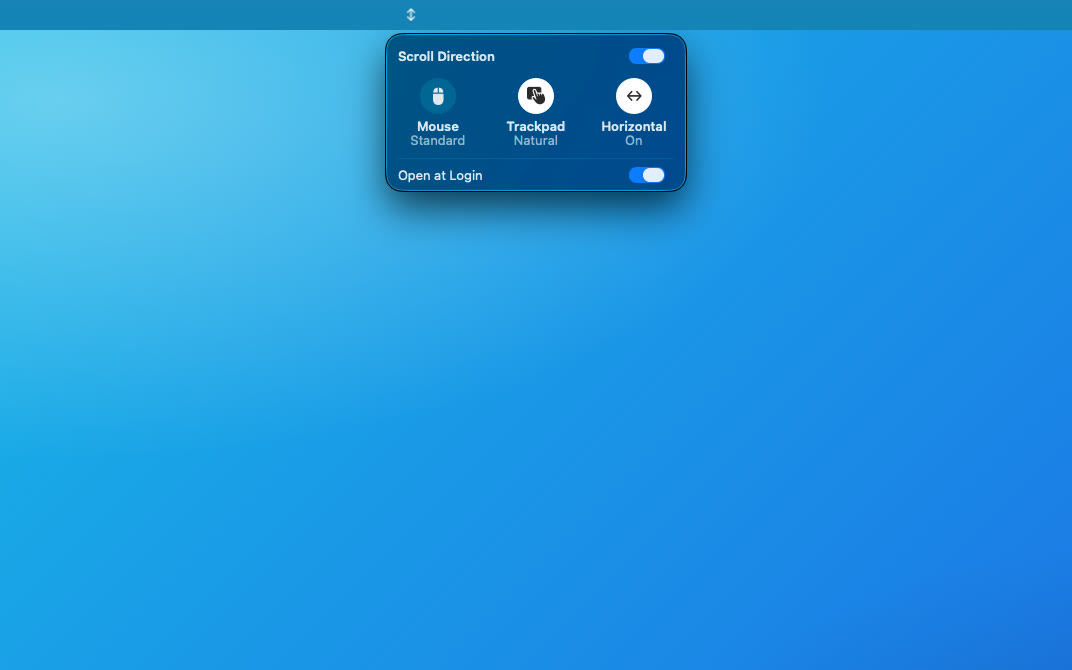
A card that feels built in
Click the menu bar icon for a compact card in the style of Control Center: one switch for everything, and round toggles for mouse, trackpad and horizontal scrolling.

Easy to check
Last Scroll shows which kind of device your most recent scroll came from, so you can see exactly what the helper is doing.
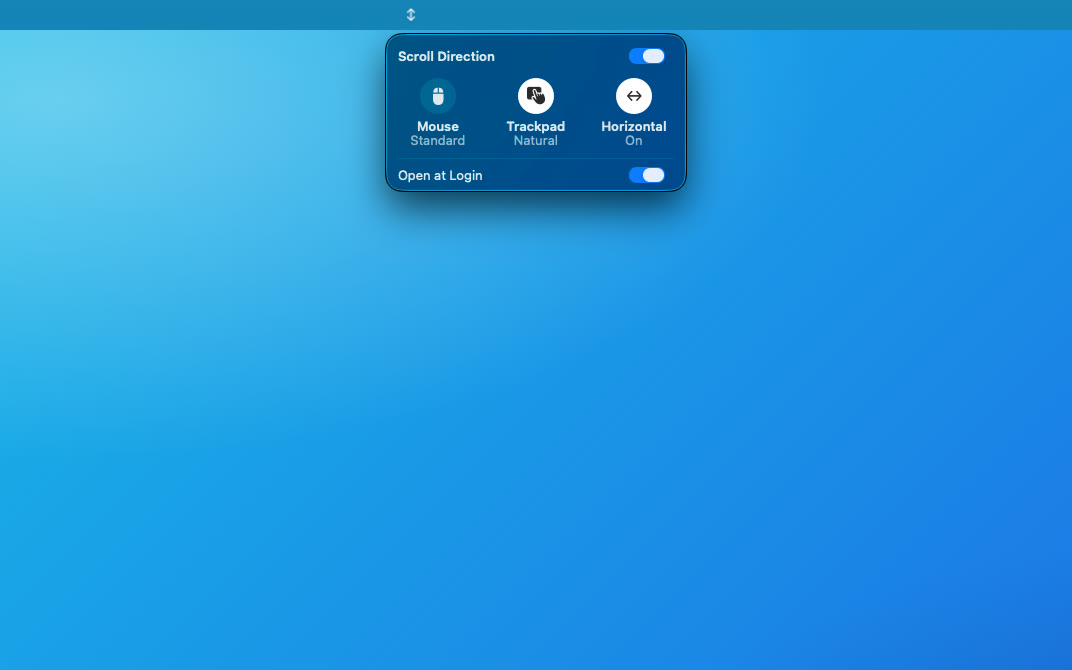
Starts with your Mac
Turn on Open at Login from the card or the right-click menu. The first time you open the card, it asks once whether you want this. It uses the system’s own Login Items, so it shows up — and can be switched off — where you’d expect.
Requirements
- A Mac with Apple silicon (M1 or later)
- macOS 13 Ventura or later
- Accessibility permission, which macOS asks for the first time you open the app. It’s how the helper adjusts scroll events.
- Works with built-in and Magic trackpads and standard USB or Bluetooth mice.
Privacy
- No analytics, tracking or ads in the app.
- Scroll events are adjusted on the fly and never recorded or sent anywhere.
- License checks send only a hashed machine ID, your computer’s name and the app version.
Questions people ask about Scroll Direction Helper
How do I change the mouse scroll direction on a Mac without changing the trackpad?
macOS has one Natural scrolling setting for both. Scroll Direction Helper reverses only the device you choose, so the mouse can scroll the classic way while the trackpad keeps natural scrolling.
Can I turn off natural scrolling for the mouse only?
Yes, and that’s how it starts out: the mouse scrolls classically and the trackpad naturally. Switch either one from the card in the menu bar.
Why does my mouse scroll backwards on my Mac?
Natural scrolling is on, and macOS applies it to the mouse wheel as well as the trackpad. Reverse only the mouse instead of turning natural scrolling off everywhere.
Does it reverse horizontal scrolling too?
Horizontal scrolling follows the same rule, or you can leave sideways scrolling as macOS has it.
Does it work on macOS Tahoe?
Yes. It runs on macOS 13 Ventura and later, including macOS 26 Tahoe, on Macs with Apple silicon.
Scroll Direction Helper · $2.99
One-time purchase. Use it on 2 Macs, with free updates forever. Full refund within 14 days, no questions asked.
Want everything? Get all six apps for $14.99 and save $11.96. Every app we add later is included too.
What’s new in 0.9.9 Updated October 21, 2026