On a trackpad
macOS calls its scroll direction Natural scrolling. With it on, the contents of a window follow your fingers, as if you were sliding a sheet of paper. Turn it off for the standard direction, where they move the opposite way.
- Choose Apple menu → System Settings.
- Click Trackpad in the sidebar. You may need to scroll down.
- Click Scroll & Zoom.
- Turn Natural scrolling on or off, then scroll a page to see how it feels.
On a mouse
With your mouse connected, choose Apple menu → System Settings, click Mouse in the sidebar and turn Natural scrolling on or off. The switch does the same thing here: on, the page moves with your finger on the wheel; off, it moves the other way.
The Mouse and Trackpad switches are one setting: change it in either place and both devices follow. If you’d like them to scroll in different directions, that’s what Scroll Direction Helper is for.
With Scroll Direction Helper
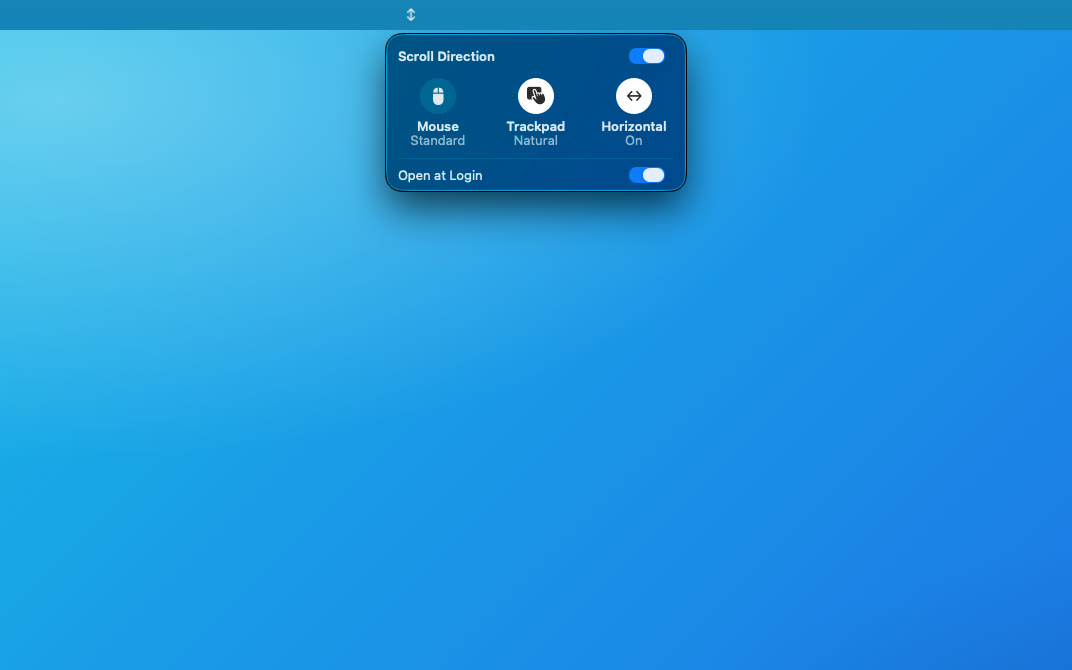
Scroll Direction Helper sits in your menu bar and gives your mouse and trackpad their own directions. Out of the box, the mouse scrolls the standard way and the trackpad scrolls naturally.
- Click the Scroll Direction Helper icon in the menu bar to open its card.
- Click Mouse to make the mouse wheel scroll naturally too. Click it again to go back to standard.
- Click Trackpad to choose the trackpad’s direction. Off means it scrolls the standard way.
- Leave Horizontal on to apply the same rule to sideways scrolling, or turn it off to leave sideways scrolling as it is.
Watch this step in the Scroll Direction Helper guide 0:16
Going back to the macOS setting
The switch at the top of the card pauses the helper, and every device follows the macOS setting again. Switch it back on to pick up where you left off.