
Mac app · $4.99, one-time
Key Remappings
Remap keys and shortcuts by clicking them on a keyboard.
Remap Caps Lock to Escape, turn a key into a shortcut, or open an app with your own hotkey. Key Remappings gives you a visual keyboard editor for your Mac’s built-in and external keyboards.
Remapping keys on a Mac shouldn’t mean editing configuration files. Key Remappings shows your keyboard on screen. Click the key or press the shortcut you want to change, then click or press what it should become — another key, another shortcut, or an app to open. Keys you have mapped light up, so you always see what is in effect.
Features
What Key Remappings does
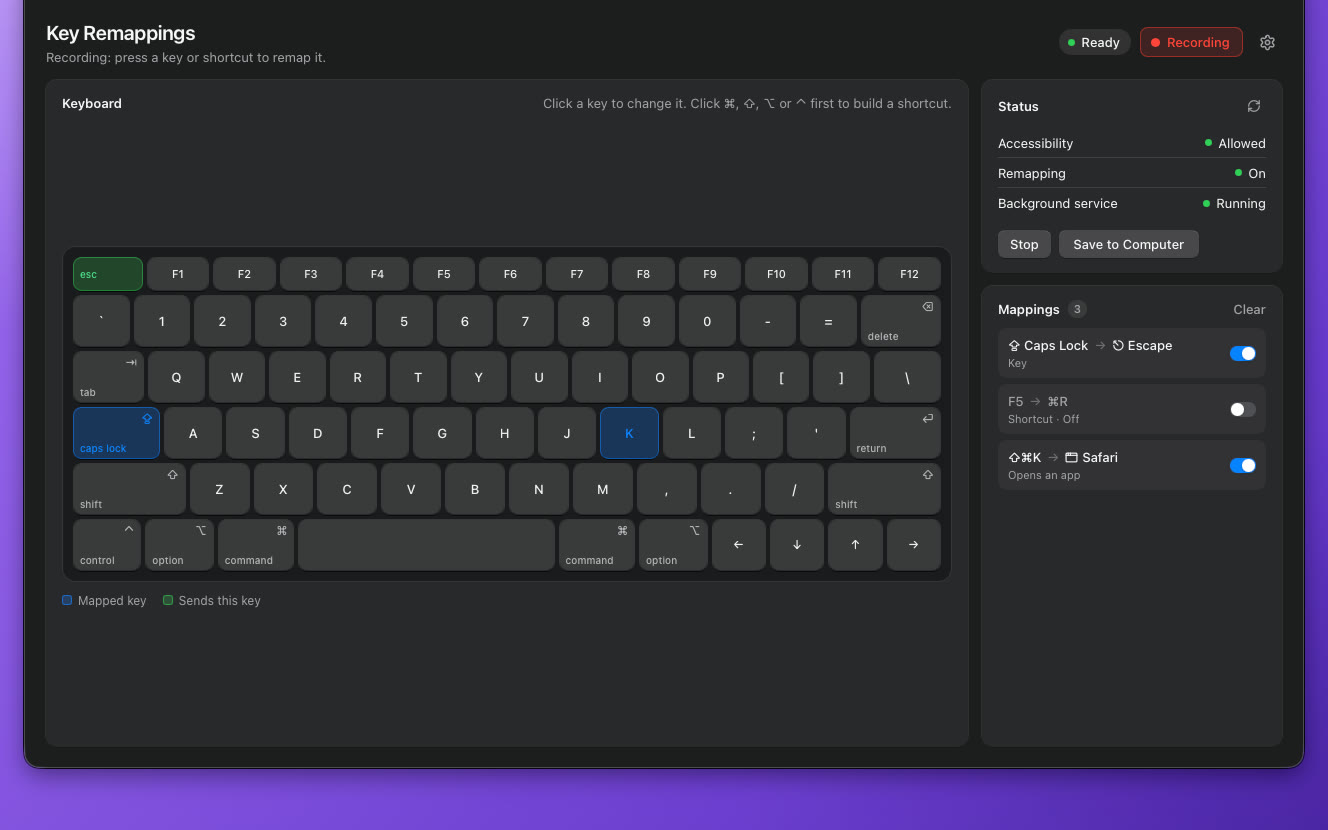
Your keyboard, on screen
Every key is drawn where it is on a Mac keyboard. Mapped triggers glow one colour, their destinations another, so the whole layout reads at a glance.
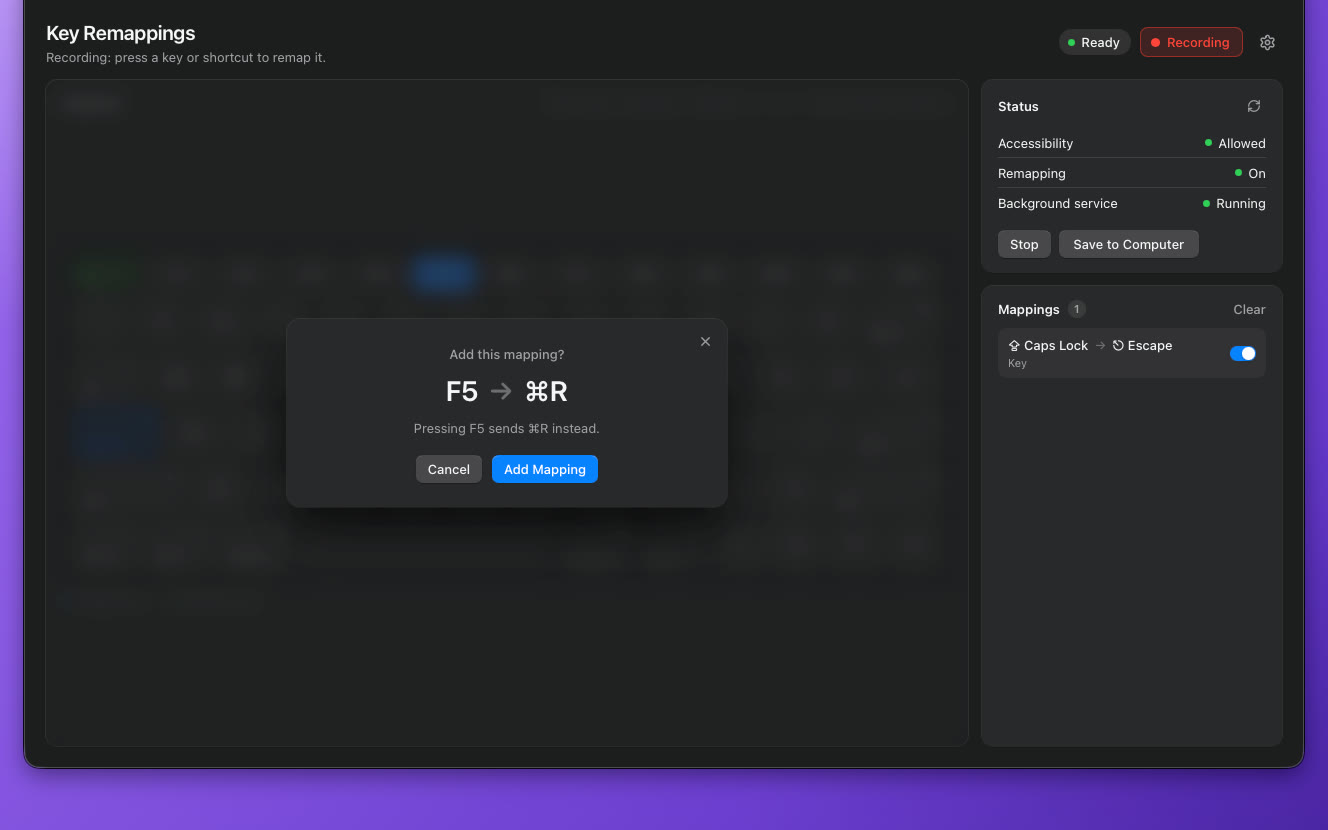
Record a shortcut
Turn on Record and press the real keys: the trigger first, then the destination. Key Remappings captures modifiers, function keys and Caps Lock, and asks you to confirm before anything changes.
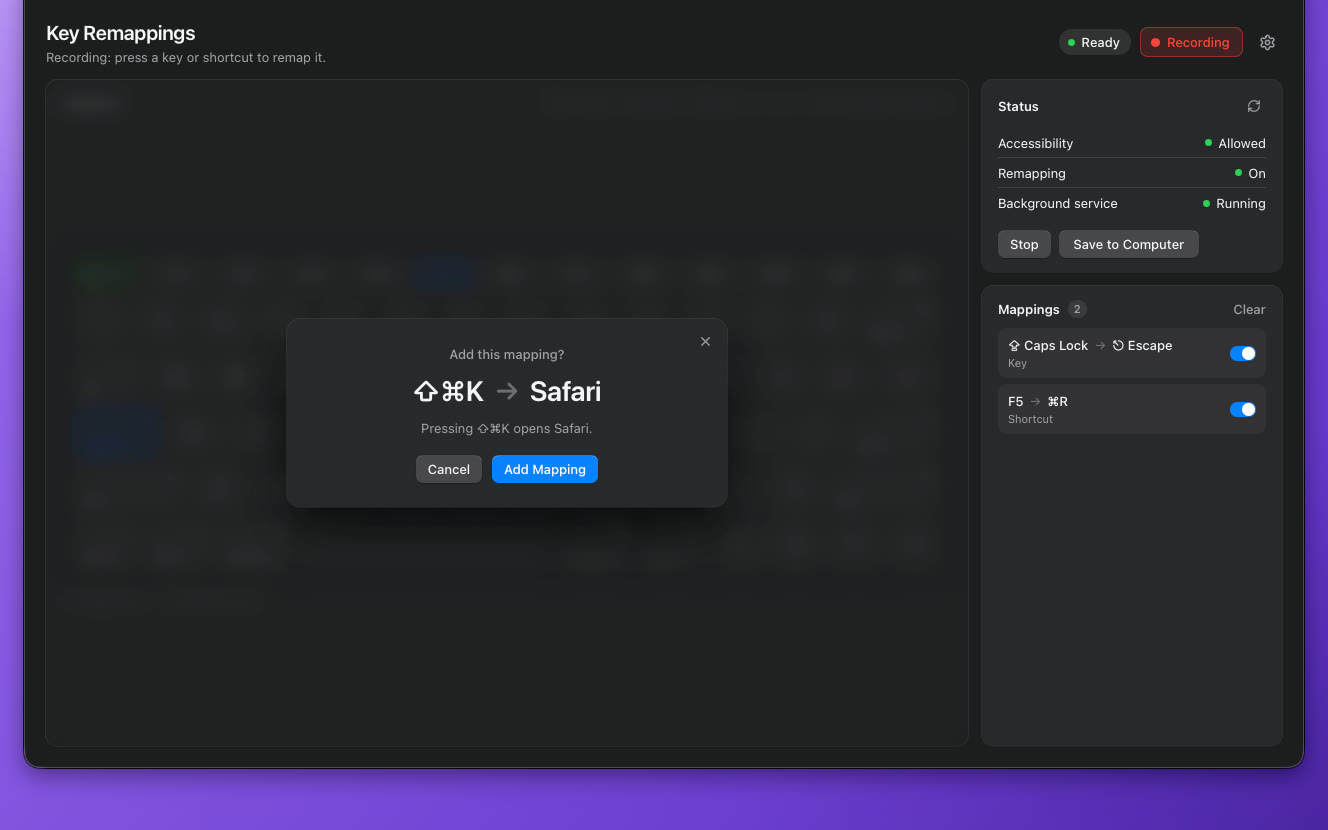
Open apps with a key
Instead of another key, a shortcut can open an app. Pick it from the apps installed on your Mac — searchable by name or bundle identifier.
A list you can switch off
Mappings are listed as trigger → destination. Pause one with its dot, delete one with a click, or clear them all.
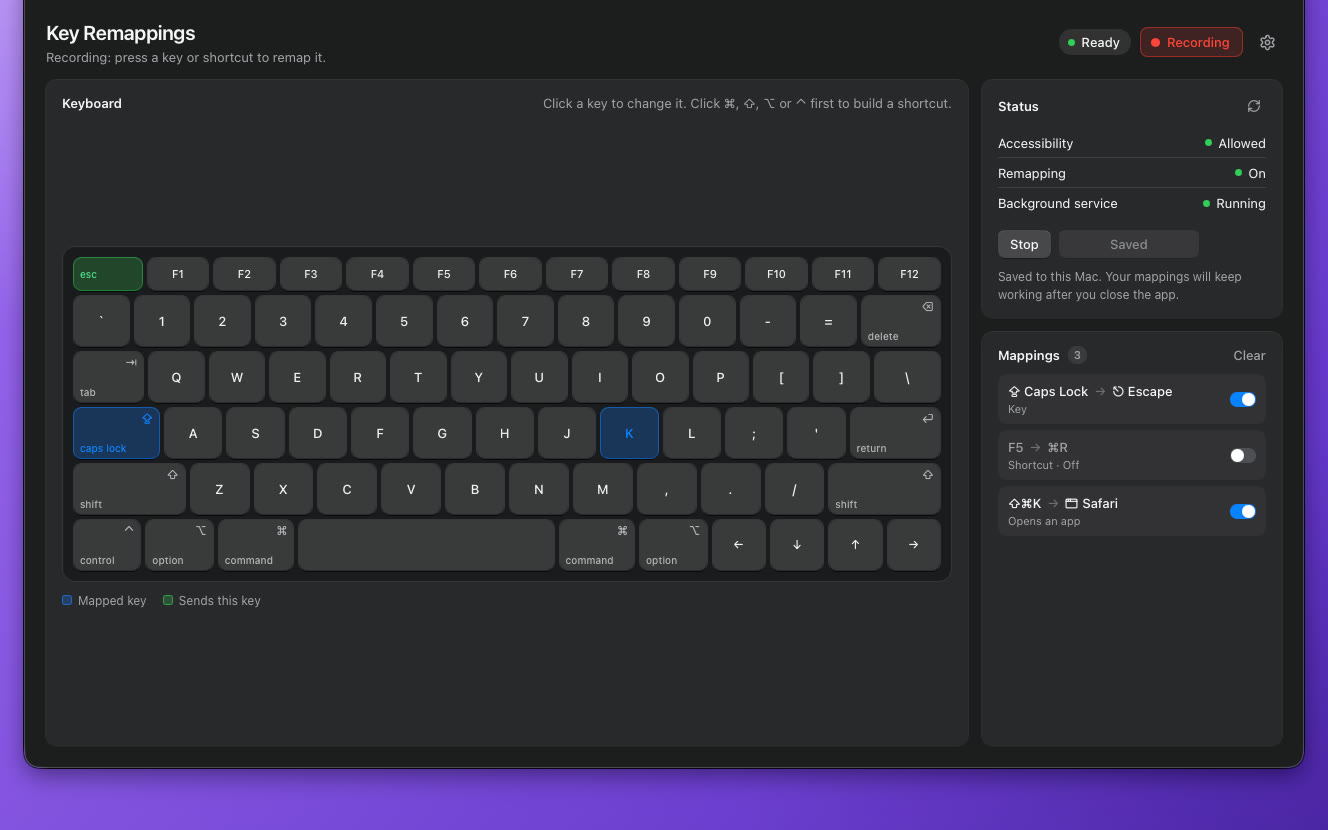
Keeps working after you quit
After allowing Accessibility, choose Save to Computer to keep your mappings working after you close the app and whenever you log in. Wait for Saving… to finish and the confirmation to appear.
Stays on your Mac
Mappings are saved in a plain JSON file in your Library folder. Keystrokes are replaced as they happen and never recorded.
Requirements
- A Mac with Apple silicon (M1 or later)
- macOS 13 Ventura or later
- Choose Allow Accessibility… in the app, then enable Key Remappings in System Settings → Privacy & Security → Accessibility. The app checks automatically. Keyboard access is required before recording or saving mappings to this Mac.
- Works with the built-in keyboard and external keyboards. Mappings apply in every app.
Privacy
- No analytics, tracking or ads in the app.
- Key presses are replaced on the fly and never recorded or sent anywhere. Your mappings stay in a file on your Mac.
- License checks send only a hashed machine ID, your computer’s name and the app version.
Questions people ask about Key Remappings
How do I remap a key on my Mac?
Allow Accessibility in System Settings when prompted by the app, then click the key on the on-screen keyboard and the key it should become. Click Add Mapping. To keep it working after you close the app, choose Save to Computer and wait for the confirmation.
Can I remap Caps Lock to Escape?
Yes. Click Caps Lock, then Escape.
Can a keyboard shortcut open an app?
Yes. Record the shortcut, then pick the app from the ones installed on your Mac.
Do I have to edit configuration files?
No. You click keys or press them; Key Remappings saves your mappings for you.
Can my remapped keys work without the app window open?
Yes. Allow Accessibility, click Save to Computer and wait for the saving confirmation. A small background service then keeps mappings working after you quit the main app and whenever you log in.
Does it work with external keyboards?
Yes. Mappings apply to the built-in keyboard and external keyboards, in every app.
Key Remappings · $4.99
One-time purchase. Use it on 2 Macs, with free updates forever. Full refund within 14 days, no questions asked.
Want everything? Get all six apps for $14.99 and save $11.96. Every app we add later is included too.
What’s new in 1.2.1 Updated October 21, 2026