How-to guide · 1:30
How to use Scroll Direction Helper
Give your mouse and trackpad their own scroll directions, pause the helper, and find its options.
Step by step
Using Scroll Direction Helper
-
Open the card
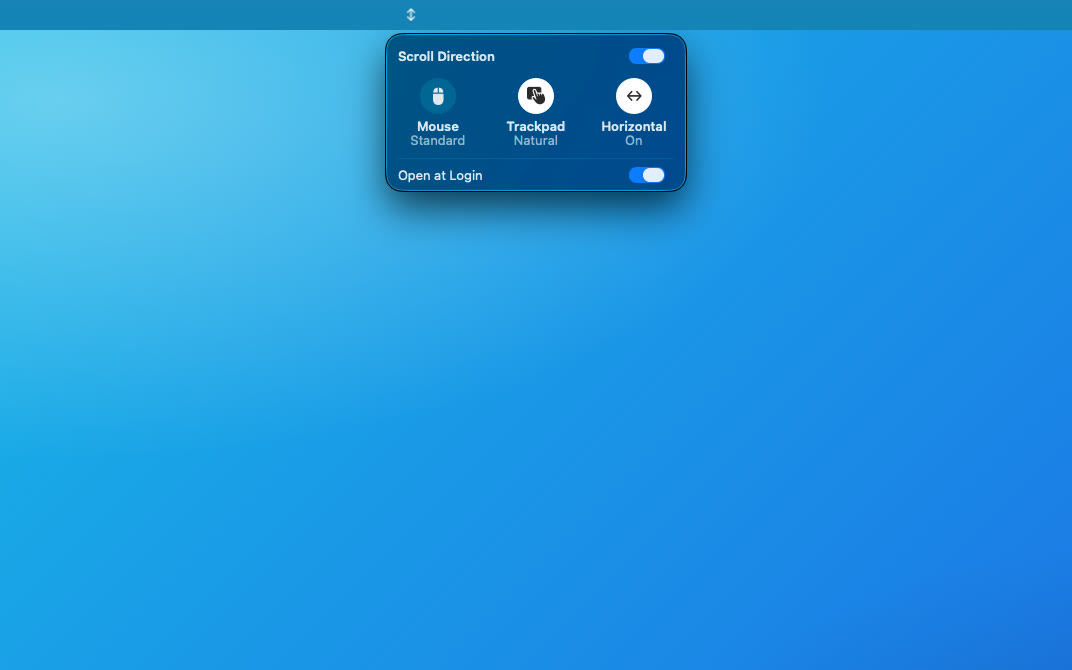
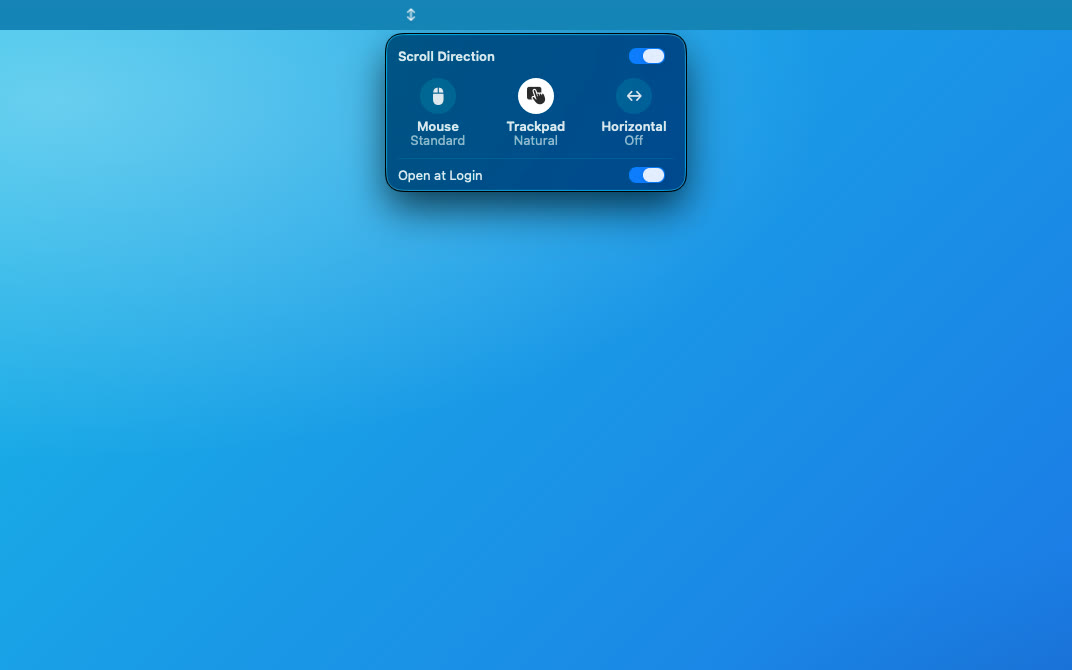
Scroll Direction Helper lets your mouse and your trackpad scroll in different directions. Click its icon in the menu bar to open the card.
-
Natural and standard
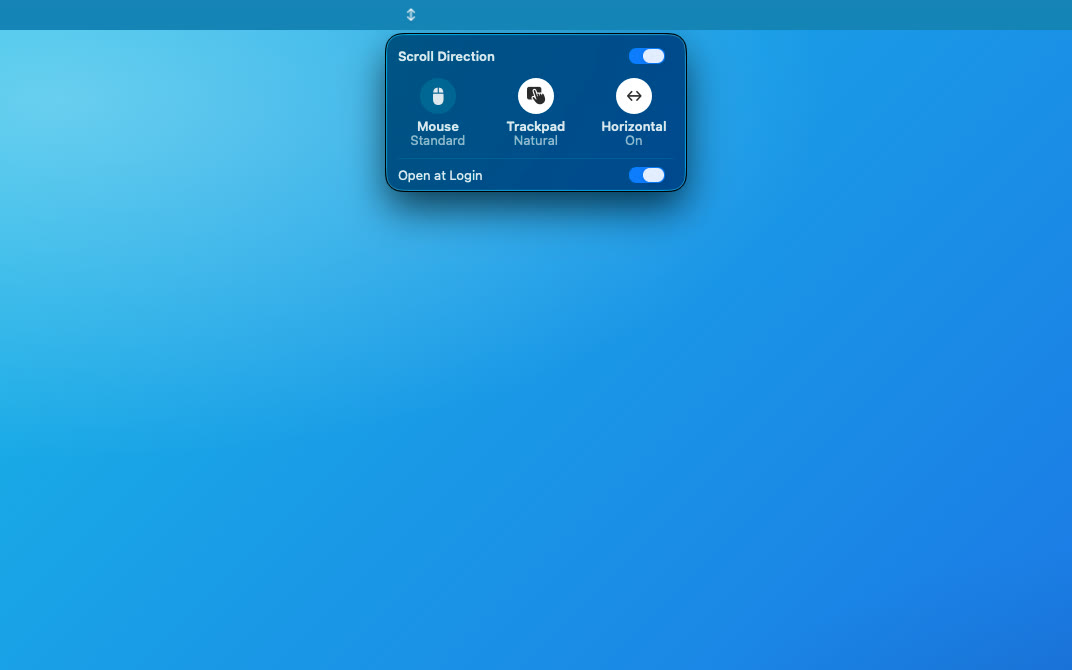
Out of the box, the mouse scrolls the standard way, and the trackpad scrolls naturally, so the content follows your fingers.
-
Choose the mouse's direction
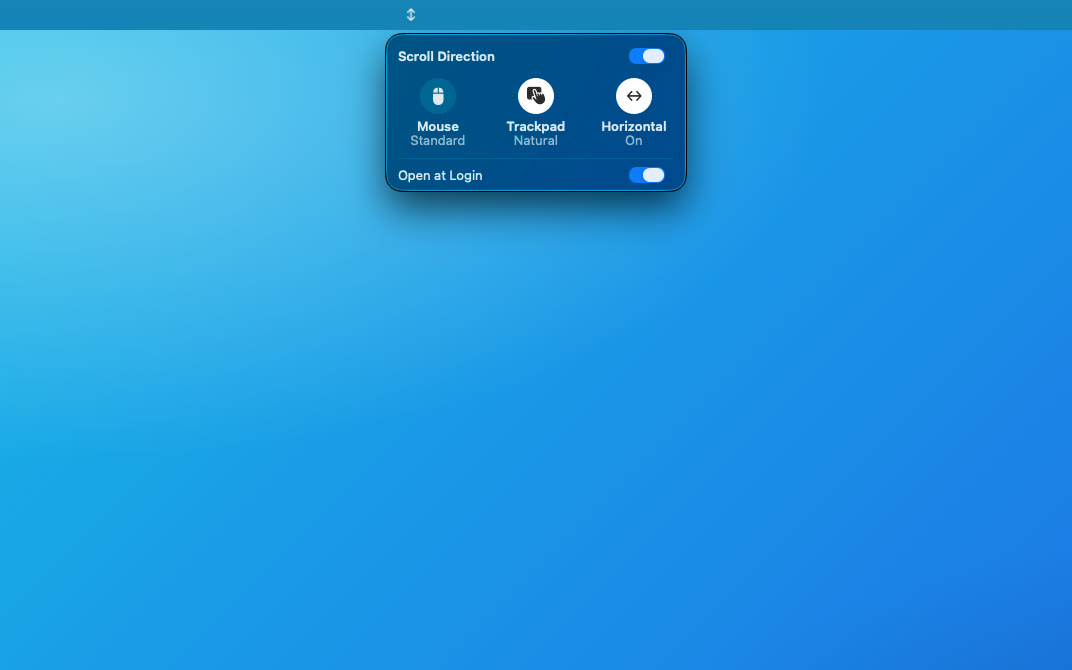
Click Mouse to make the mouse wheel scroll naturally too. Click it again to go back to standard.
-
Choose the trackpad's direction
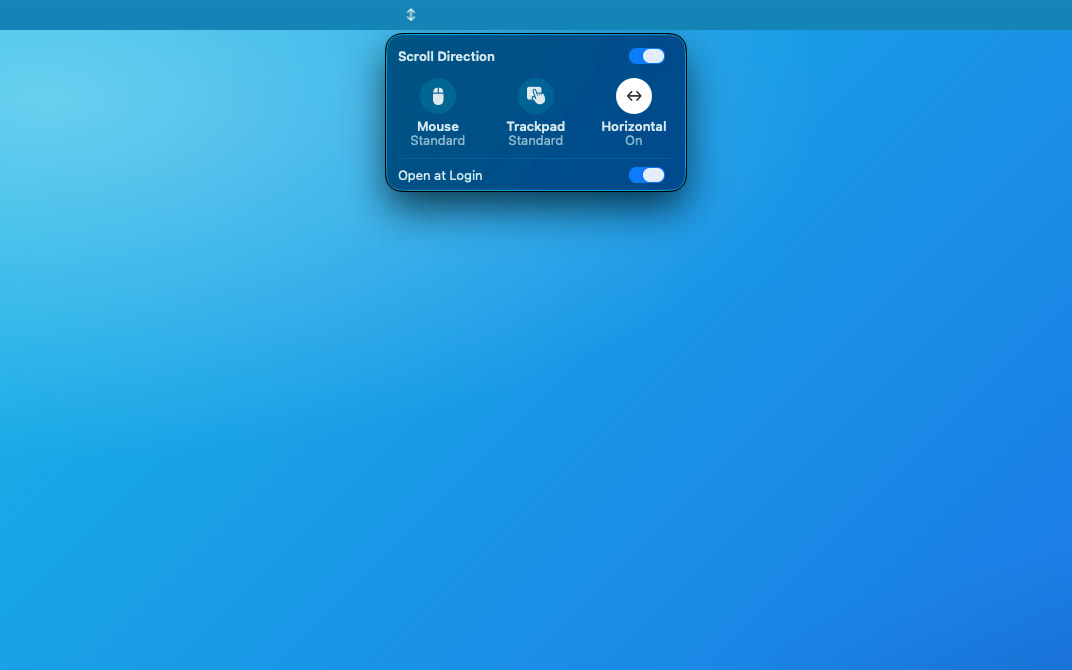
Trackpad does the same for the trackpad. Turn it off, and the trackpad scrolls the standard way.
-
Sideways scrolling
Horizontal applies the same rule to sideways scrolling. Turn it off to leave sideways scrolling as it is.
-
Pause the helper
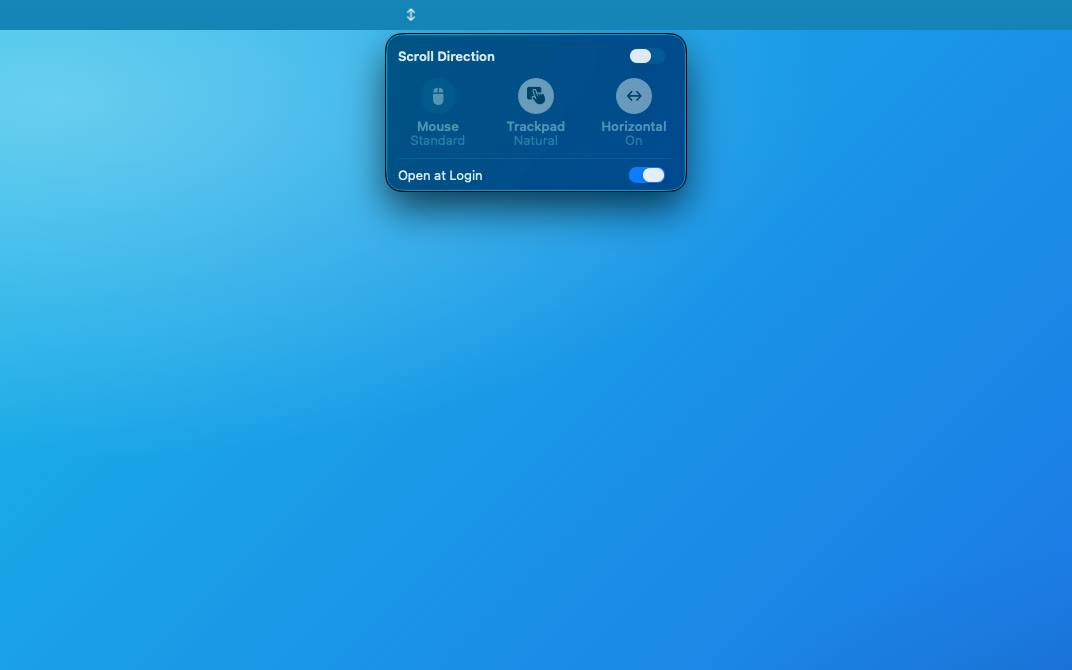
The switch at the top pauses the helper, and every device follows the macOS setting again. Switch it back on to pick up where you left off.
-
Start with your Mac
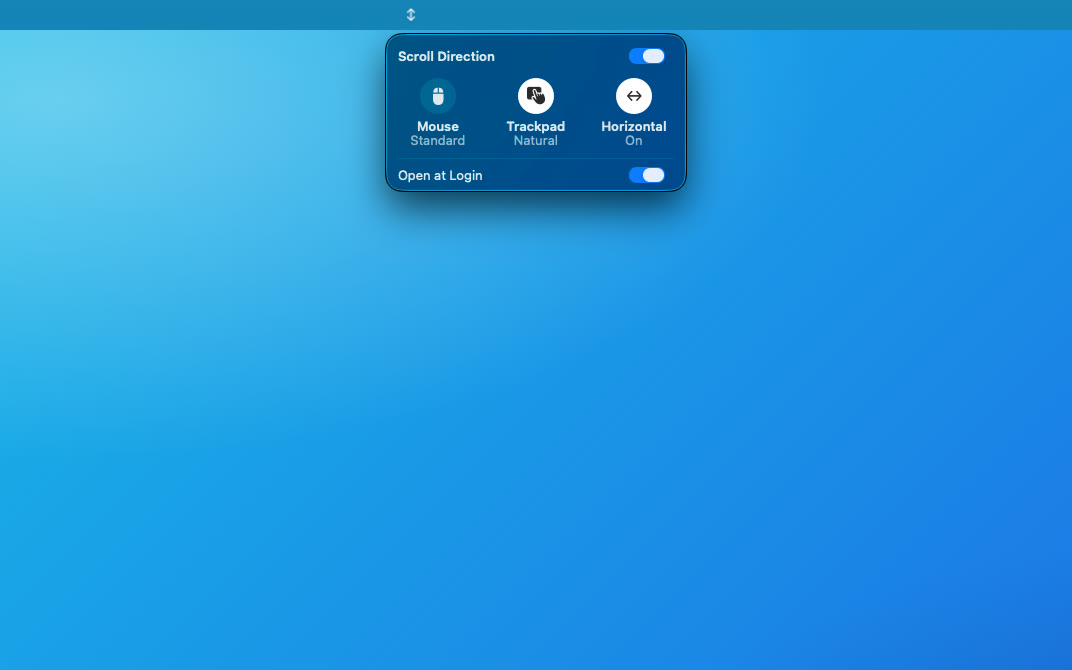
Open at Login is also on the card. Turn it on to start the helper when you log in. The first time you open the card, it asks once whether you want this.
-
Status and options
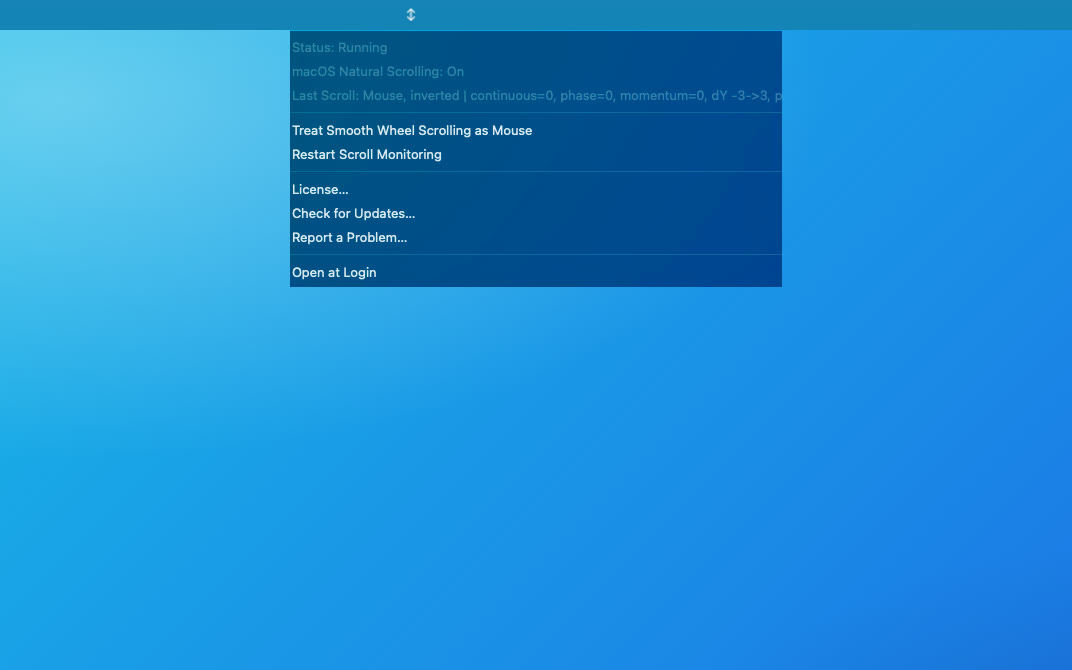
Right-click the icon for the helper's status, how it handled your last scroll, and an option for high-resolution mouse wheels that scroll smoothly. Your license, updates and Report a Problem… are here too, and Open at Login starts the helper with your Mac.
-
Allow Accessibility access
The first time you open it, macOS asks you to allow Accessibility access, so the helper can see scroll events. Turn it on in System Settings, under Privacy and Security, Accessibility.
Scroll Direction Helper · $2.99
Natural scrolling on the trackpad, classic scrolling on the mouse — at the same time. Try it free for 7 days.
More about Scroll Direction HelperHow to change the scroll direction on a MacChange mouse scrolling without changing the trackpad on MacAll how-to guides