In Terminal, with nettop
nettop comes with macOS and shows live network activity process by process, with each connection listed under its process. A connection shows its protocol, your Mac’s address and port, the remote address and port it reaches, and the bytes in and out.
- Open Terminal — it’s in Applications → Utilities.
- Type
nettop -nand press Return. The-noption shows plain addresses instead of looking up names. - Press
cto collapse the list to one line per process, andeto expand it again. To watch a single process, add-pand its name or process ID. - Press
qto quit.
Or list open connections with lsof
For a one-off list, lsof -iTCP -sTCP:ESTABLISHED -n -P prints open TCP connections, each with its process name, process ID, your address and port, and the remote address and port. Run as you, it lists only your own processes; put sudo in front, and enter your password, to include system services.
Both tools show addresses rather than places, and processes rather than apps. Working out where an address is, or which app a helper belongs to, is up to you.
With Network Map Monitor
Network Map Monitor reads the same accounting nettop shows, and adds what it leaves out: which app each connection belongs to, and roughly where it goes.
- Open Connections. Every remote endpoint is listed with its app, port, protocol and location.
- Search by address, app, port or place.
- Click a connection for details, including your local endpoint, the interface and the connection’s state.
- Open Map for a full view of where your apps connect, and click a destination to see the connections behind it.
- Zoom in with the buttons or your trackpad. The home button takes you back to where you are.
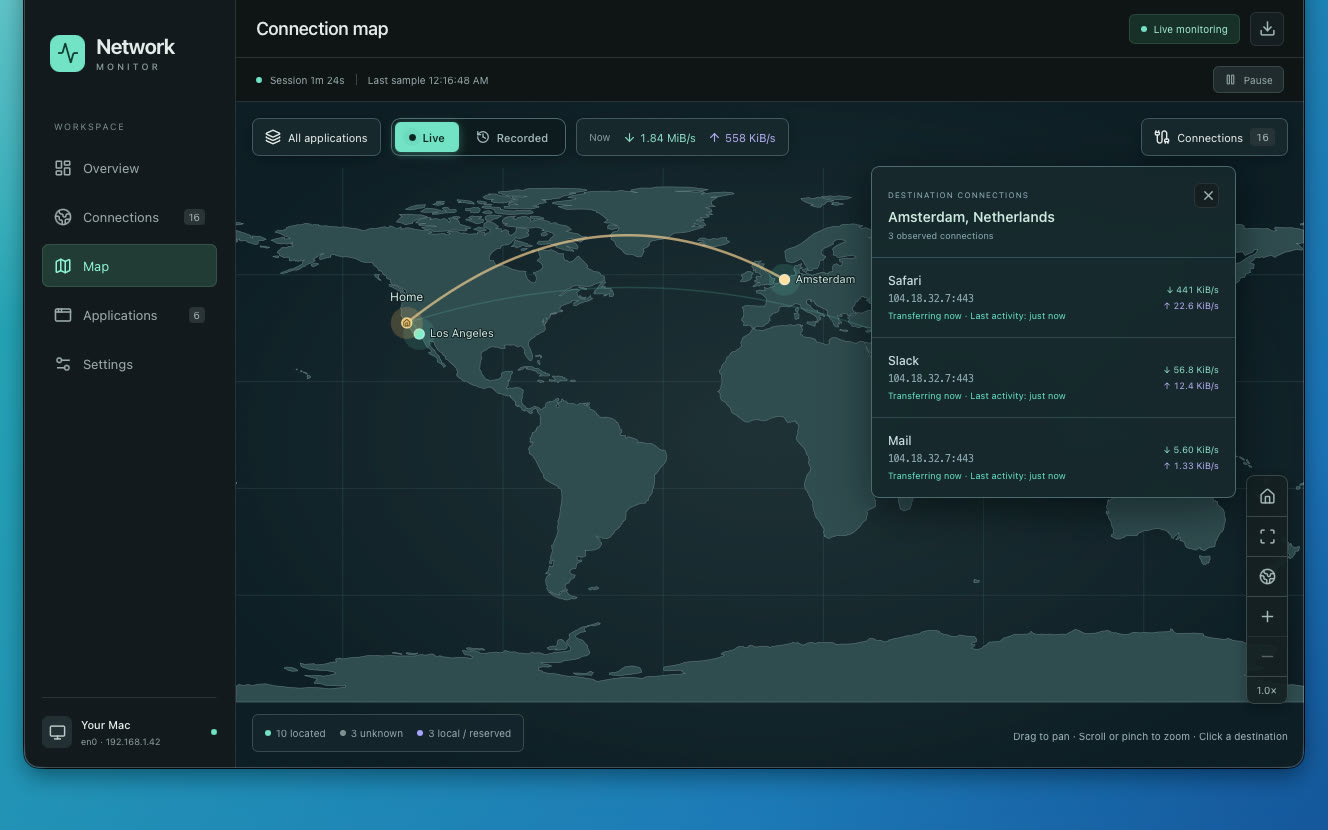
Watch this step in the Network Map Monitor guide 0:44
Good to know
Locations are approximate: they show where an IP address is registered, which may be a CDN or VPN exit rather than the actual server. Private and local addresses are never given a made-up place on the map. The location database is searched on your Mac, so the addresses you connect to aren’t sent anywhere.
It’s a monitor, not a firewall: it shows connections and never blocks them. A connection that opens and closes between its one-second samples can be missed. To keep a record, export a CSV snapshot of current connections.