Use Activity Monitor’s Network tab
Activity Monitor comes with macOS, and its Network tab shows how much data each process has sent and received.
- Open Activity Monitor — it’s in Applications → Utilities, or search for it with Spotlight.
- Click Network at the top of the window.
- Click the Rcvd Bytes column heading to sort the list by data received, or Sent Bytes to sort it by data sent.
What Activity Monitor can and can’t tell you
The bottom of the window shows Data received and Data sent for the whole Mac, with Data received/sec and Data sent/sec for how fast it’s moving right now. To watch that from the Dock, choose View → Dock Icon → Show Network Usage.
The per-process columns are totals, not speeds: they tell you which process has moved the most data, not which one is busy this second. They also list processes, not apps: many apps do their networking in helper processes, which get rows of their own. View → All Processes, Hierarchically shows processes under the ones they belong to, which brings some helpers back under their app.
With Network Map Monitor
To find which app is using your bandwidth right now, sort Network Map Monitor by Highest live traffic. It lists apps rather than processes, each with live download and upload rates and a total for the session.
- Open Network Map Monitor. The Overview shows your live download and upload rates, how many apps and connections are active, and the apps that have used the most this session.
- Click Applications in the sidebar. Each app has its download and upload rate and its total usage this session, with helper processes counted under the app they belong to. The apps that have used the most come first.
- Choose Highest live traffic to see which apps are busy right now, or search for an app, a process or a destination.
- Click an app to see its traffic over time and every connection it has open.
- Pin the apps you care about, and they stay at the top of the list.
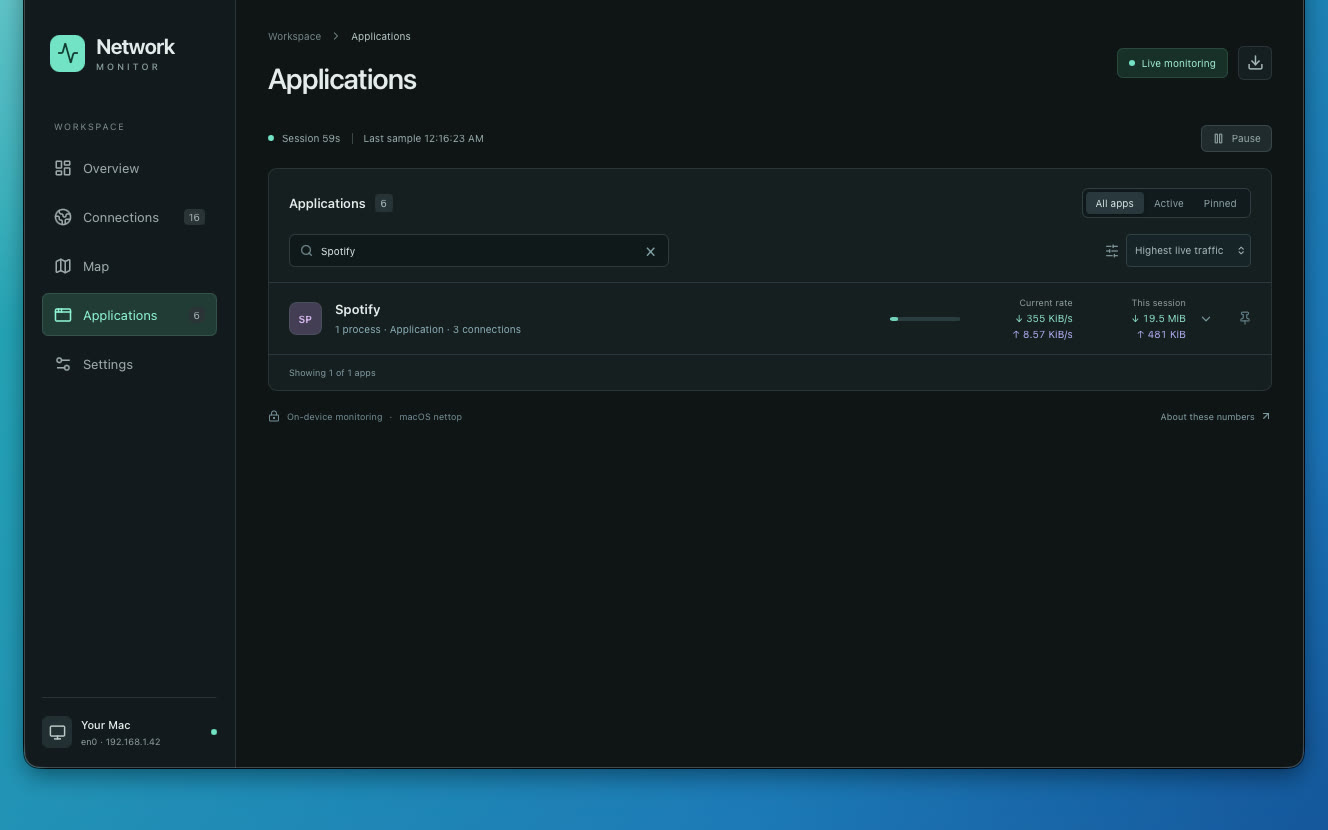
Watch this step in the Network Map Monitor guide 0:17
Reading the numbers
Rates are in bytes per second (KiB/s, MiB/s), while speed tests usually show bits per second. There are 8 bits in a byte, so 1 MiB/s is a little over 8 Mbps.
A rate of zero often just means an app is idle between bursts — streaming video downloads ahead, then plays from what it has. Totals start fresh each time you open the app, so it isn’t a monthly data meter. Pause stops collecting without losing the session’s totals, and Resume picks up where you left off.