How-to guide · 1:32
How to use Network Map Monitor
See which apps use your network and where they connect, look inside an app, follow your connections on the map, and pause. Shown with sample data.
Step by step
Using Network Map Monitor
-
Your network at a glance
Network Map Monitor shows which apps are using your network, and where their connections go. The overview has your live download and upload rates, how many apps and connections are active, and the apps that used the most this session. The apps and places in this video are sample data.

-
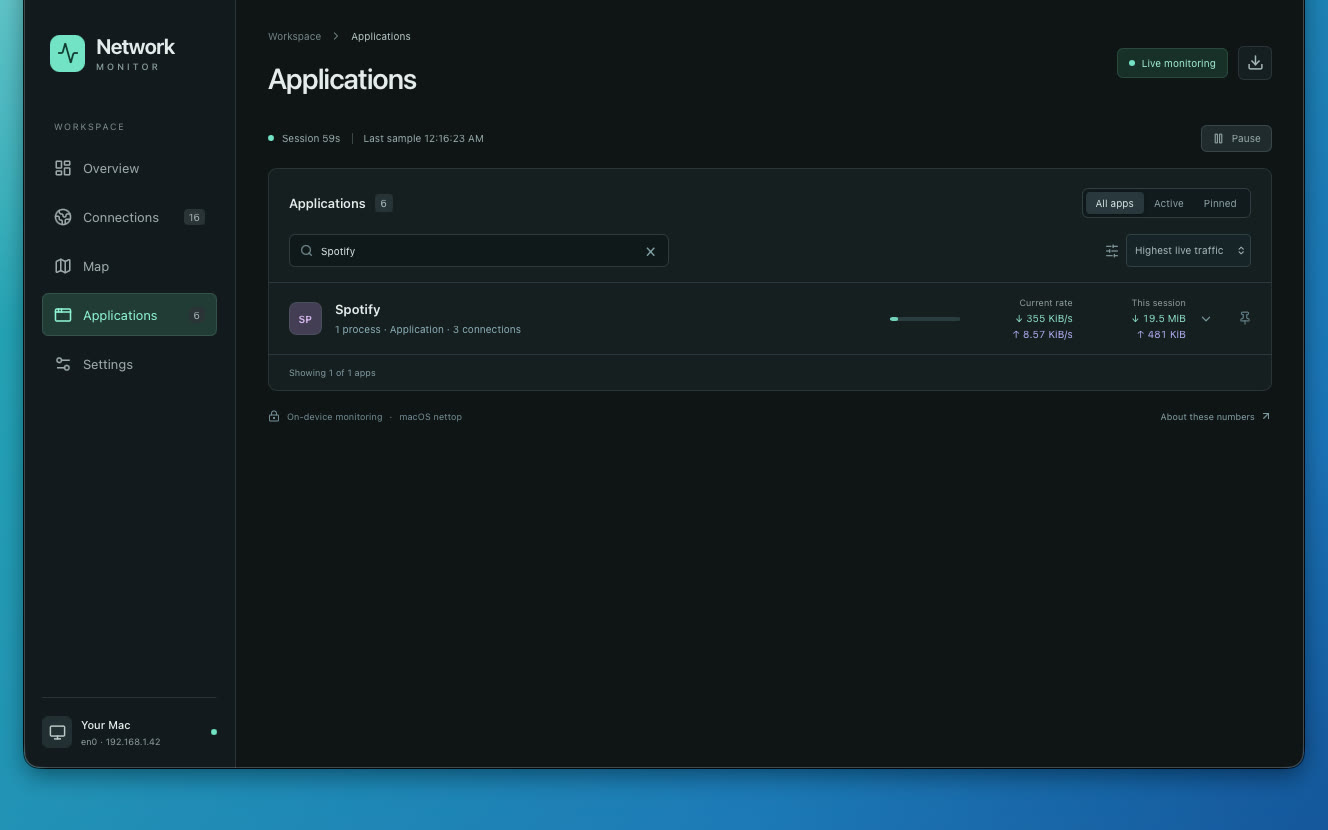
Find an app
Applications lists every app with its traffic, the busiest first. Sort by live traffic instead, or search for an app, a process, or a destination.
-
Look inside an app
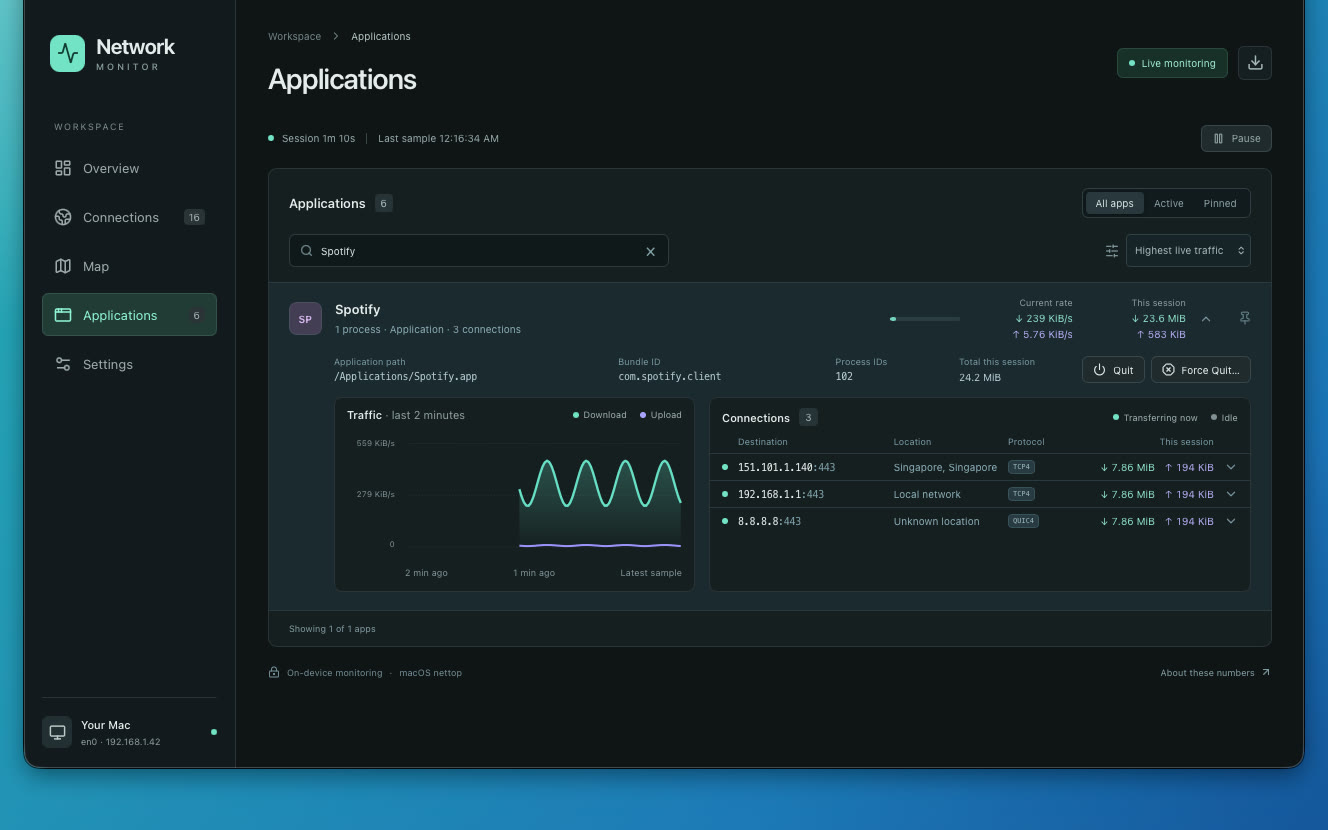
Click an app to see where it lives, its processes, its traffic over time, and every connection it has open. Quit and Force Quit are right there too.
-
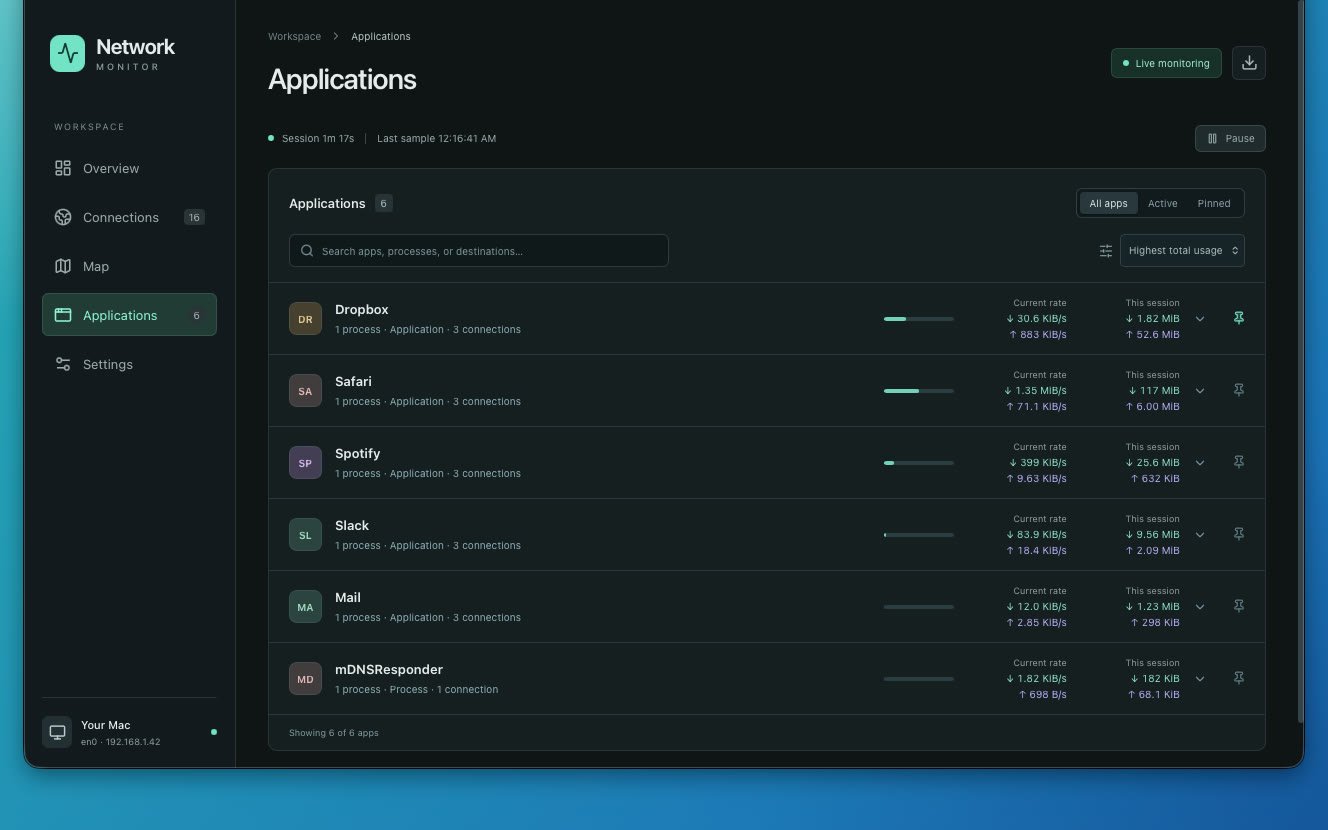
Pin the apps you care about
Pin the apps you care about, and they stay at the top of the list.
-
Follow your connections on the map
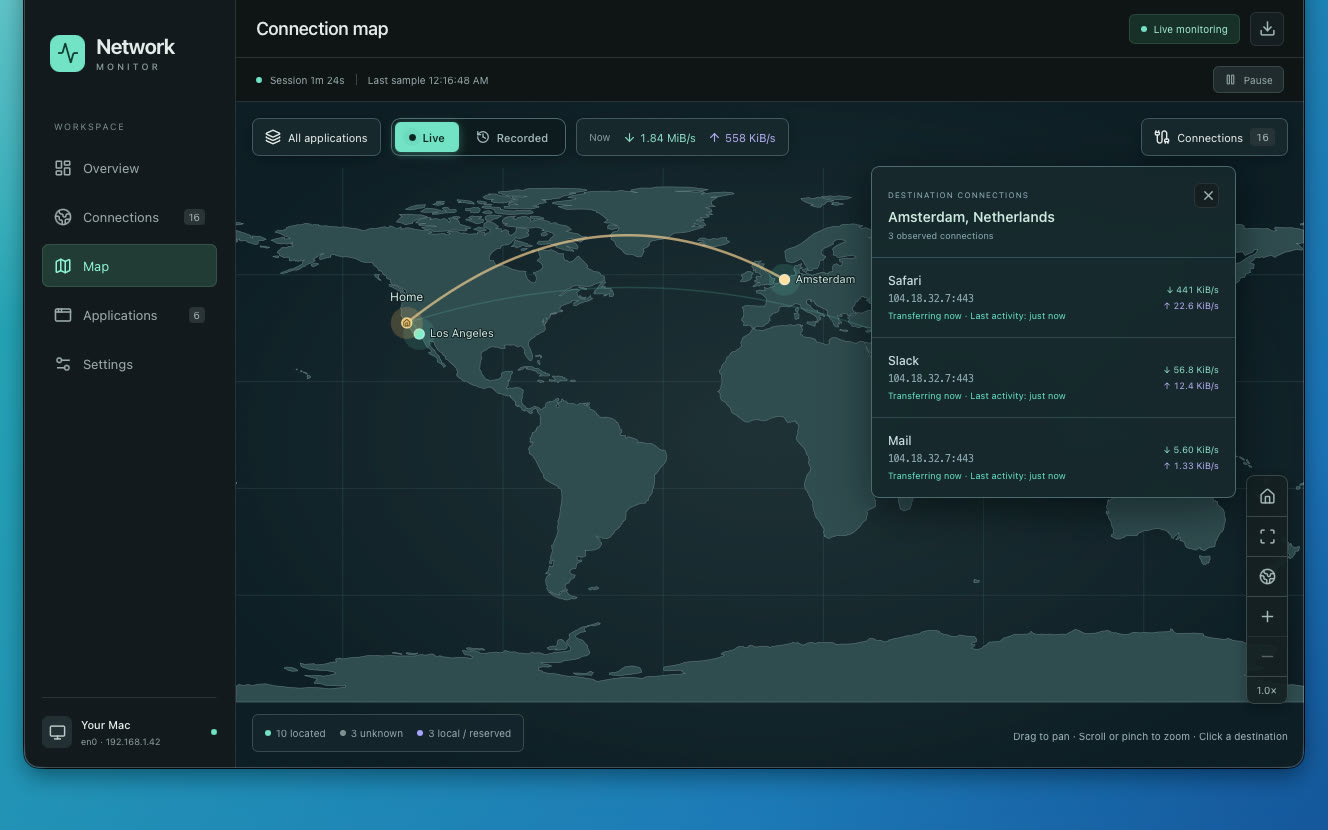
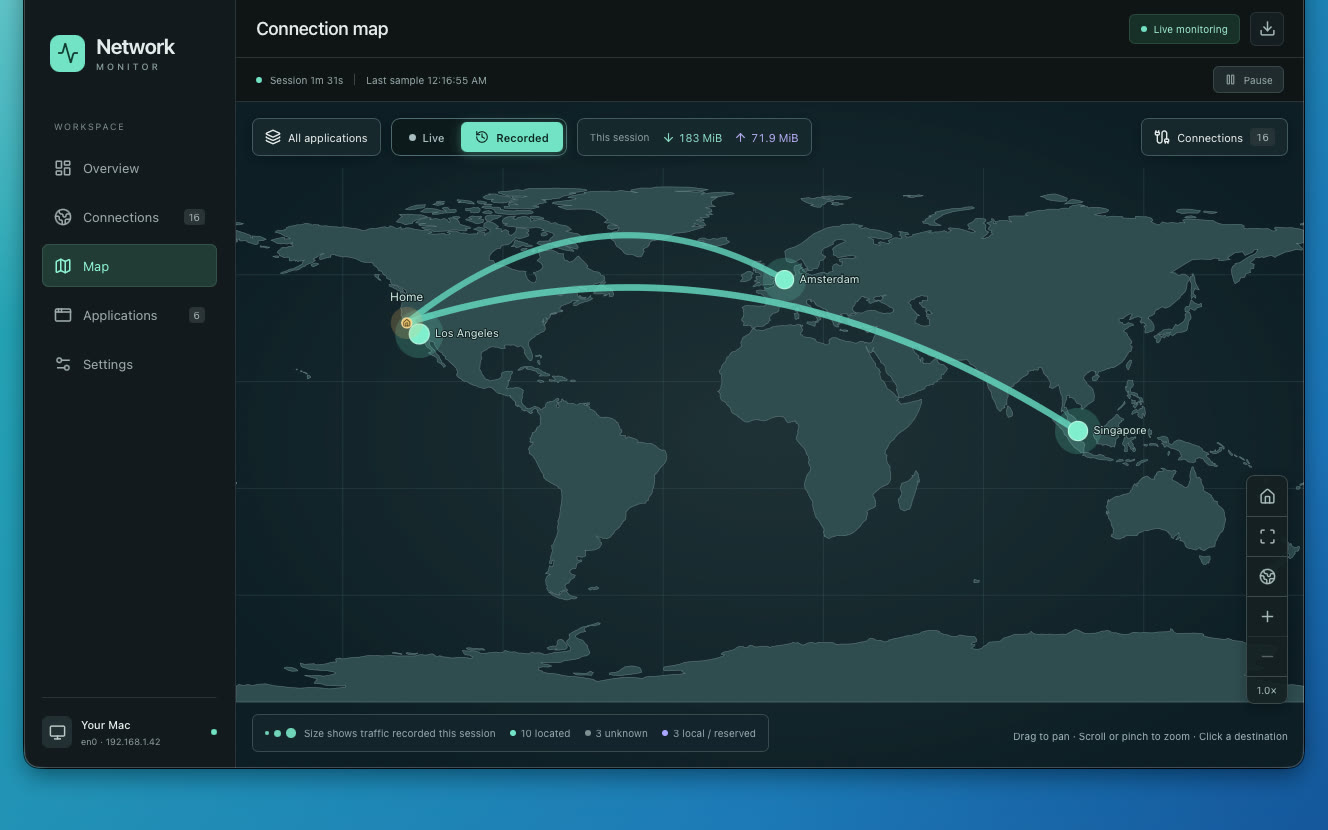
Open Map for a full view of where your apps connect. Click a destination to see its connections.
-
Everywhere this session
Recorded shows every place your apps reached this session, sized by how much data went there.
-
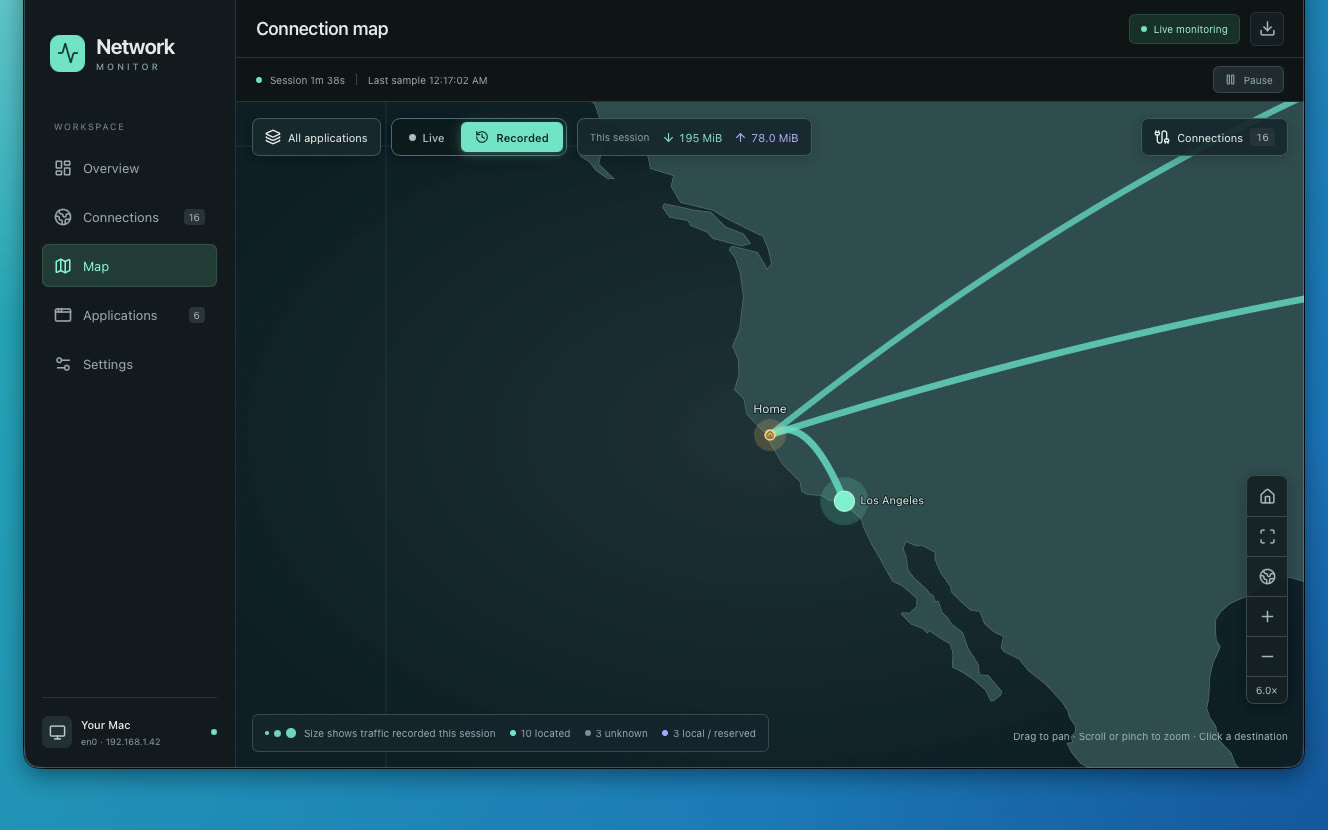
Zoom and find home
Zoom in with the buttons or your trackpad, and the home button takes you back to where you are.
-
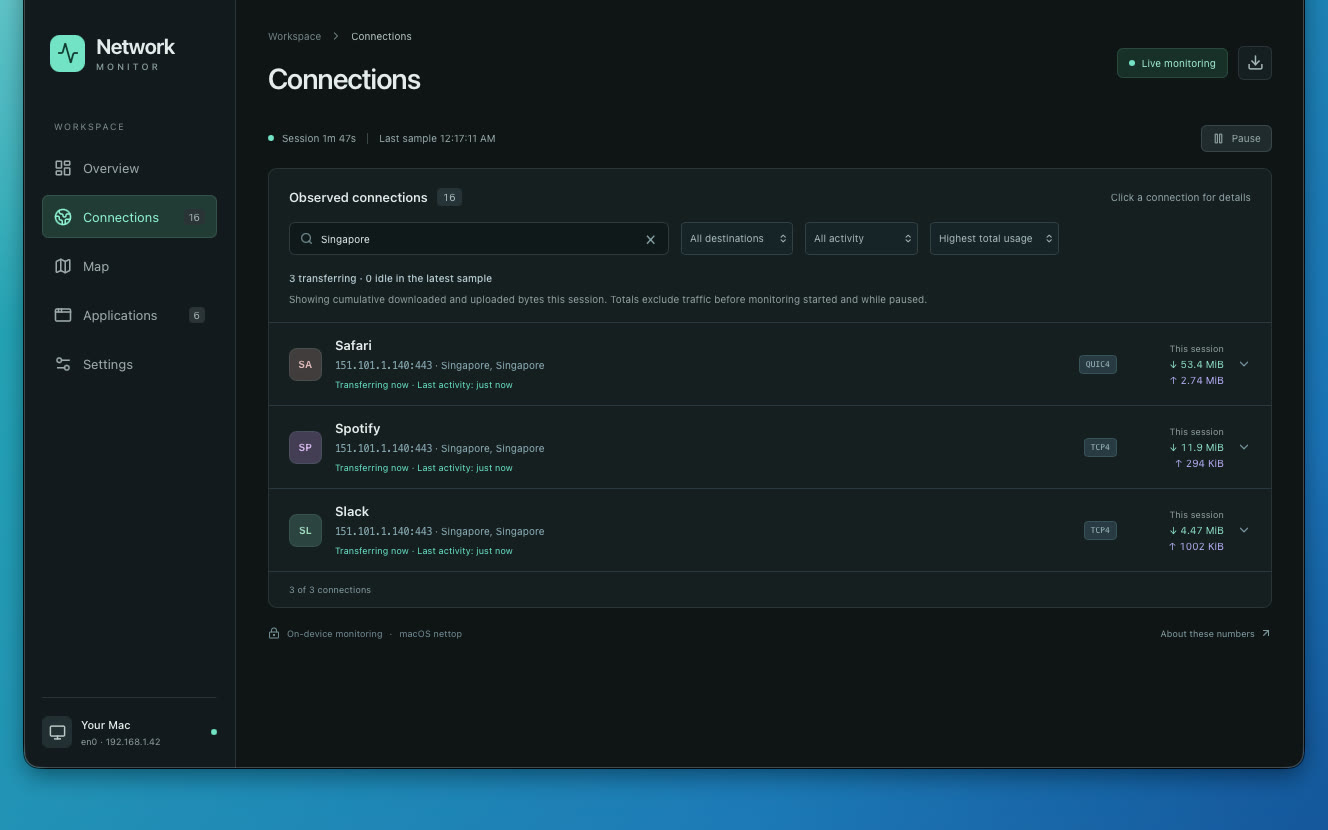
Every connection
Connections lists every remote endpoint, with its app, port, protocol, and location. Search by address, app, port, or place.
-
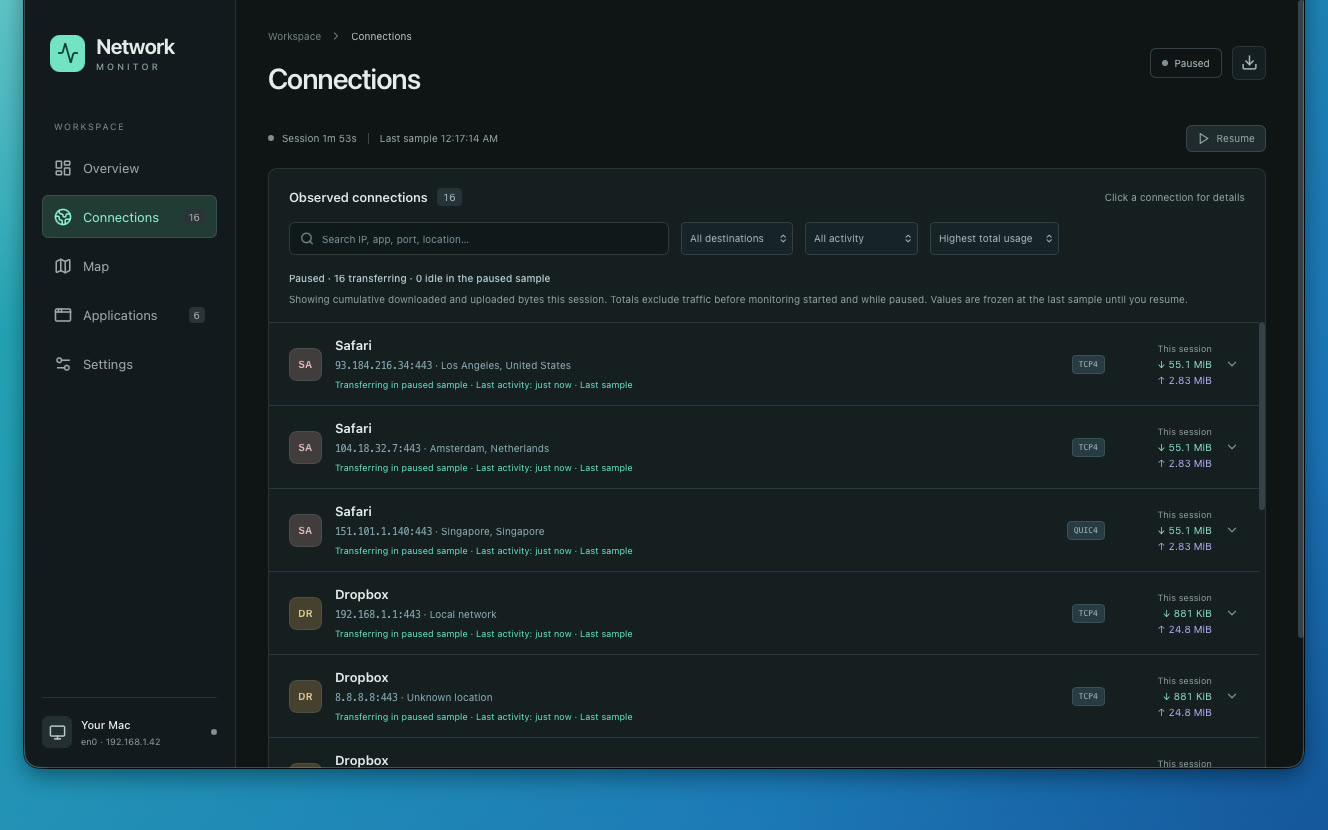
Pause and resume
Pause stops collecting without losing this session's totals. Resume picks up where you left off.
-
Private by design
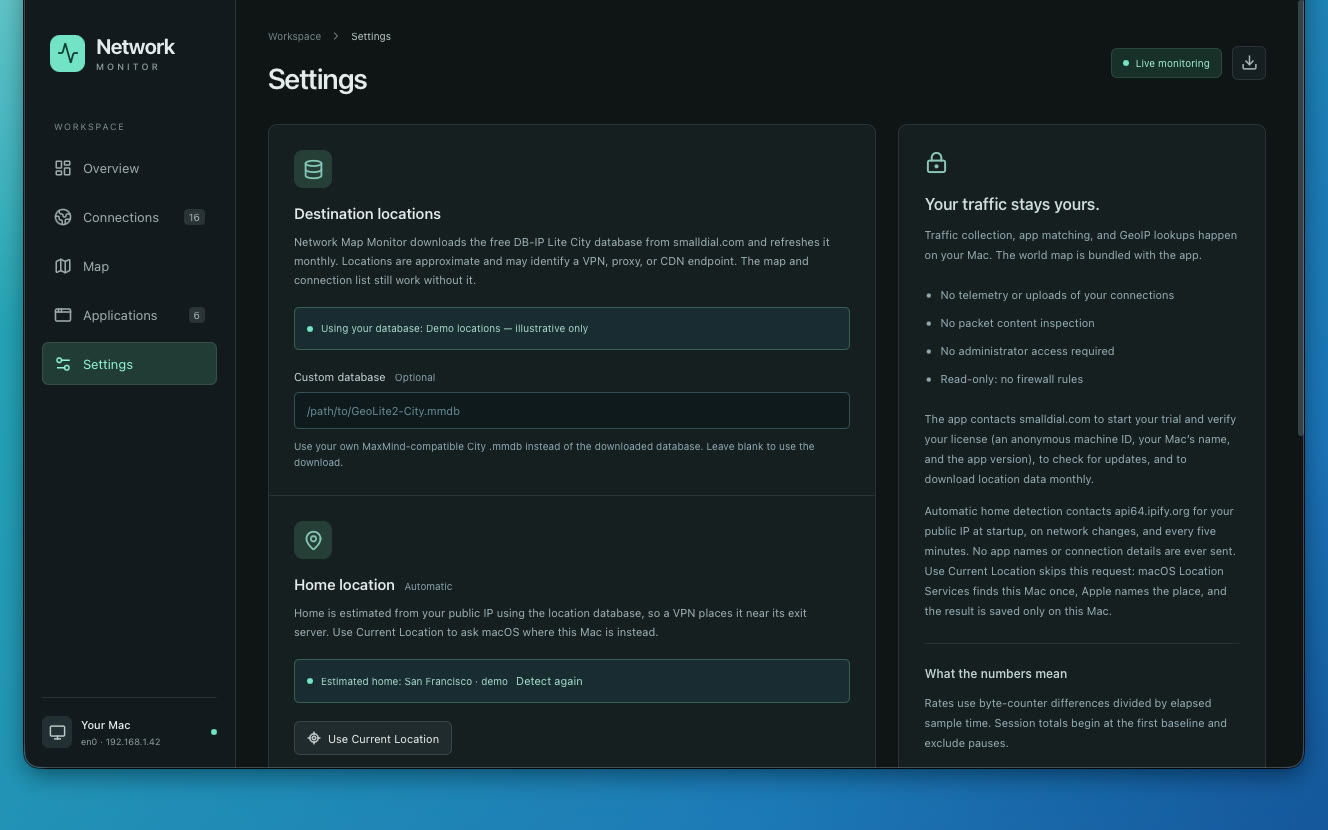
Everything stays on your Mac: nothing about your apps or connections is ever sent anywhere. Settings has the location database, your home location, and updates.
Network Map Monitor · $7.99
Live bandwidth by app, and a map of everywhere your Mac connects. Try it free for 7 days.
More about Network Map MonitorHow to see which apps are using the internet on MacHow to see which servers your Mac is connecting toAll how-to guides