With the Shortcuts app
Keyboard settings can’t do this by themselves: Apple notes that App Shortcuts work only for existing menu commands, not for general tasks such as opening an app. The Shortcuts app, which comes with macOS, fills the gap.
- Open Shortcuts and click the Add button in the toolbar. Click Shortcut Name and type a name, such as Open Notes.
- Search the action list for Open App, add it to the shortcut, then choose the app in the action.
- Click the Shortcut Details button, click Add Keyboard Shortcut, then press the key combination you want.
- Close the editor, then press your combination in any app.
Good to know
To remove the keyboard shortcut, open the shortcut again, click the “Run with” field and press Delete. Some combinations are reserved for the system and can’t be used. You’ll need a separate shortcut for each app you want on a key.
With Key Remappings
Key Remappings keeps app shortcuts in the same list as your key remappings, so one window shows every key you’ve changed. Choose Allow Accessibility… and enable it in System Settings → Privacy & Security → Accessibility. Return to the app; it checks automatically.
- Turn on Record and press the shortcut you want to use, such as ⌘⇧T. Or click it on the on-screen keyboard: ⌘, then ⇧, then T.
- Click Open an App Instead… above the keyboard.
- Search for the app by name or bundle identifier, and click it.
- Click Add Mapping. The list shows ⌘⇧T → Terminal, and pressing ⌘⇧T opens it from any app.
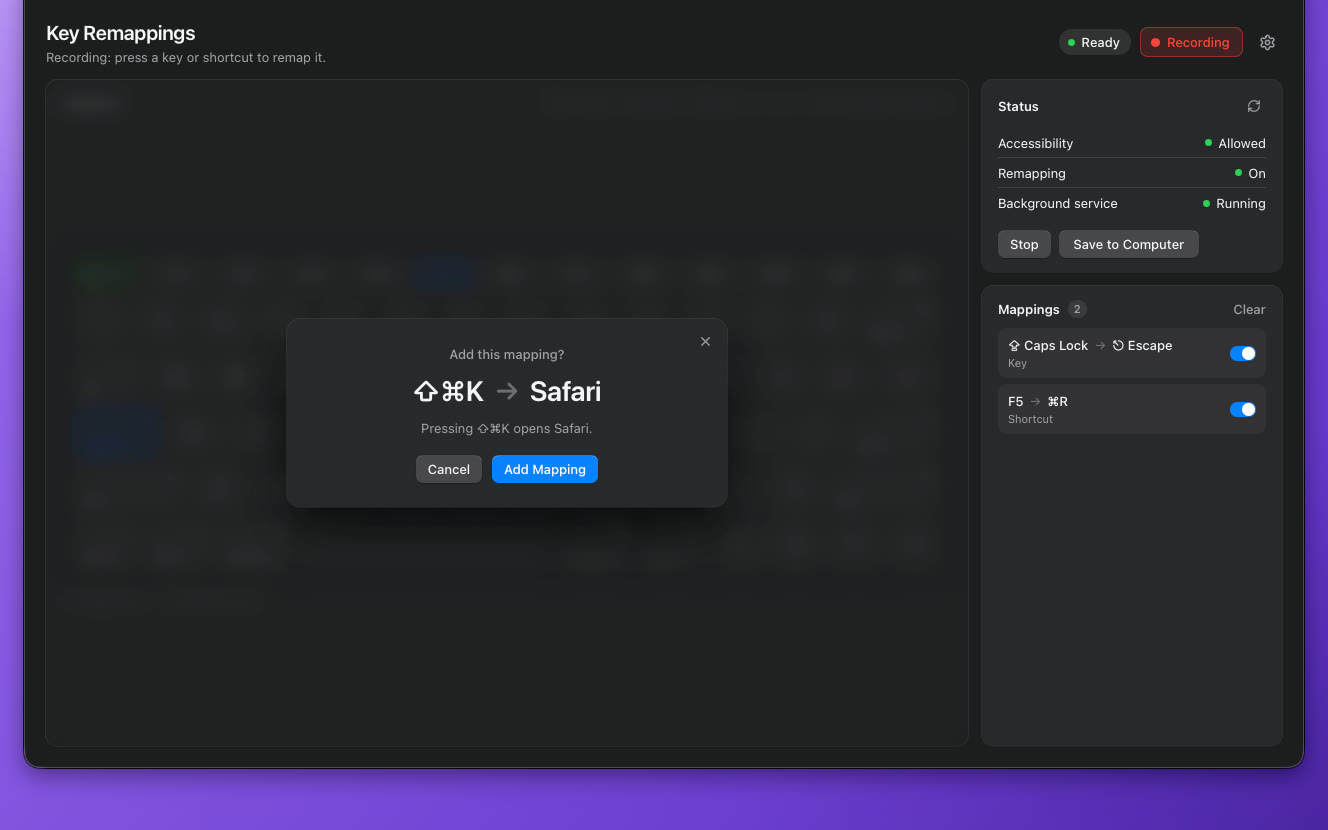
Watch this step in the Key Remappings guide 0:20
Keep it working after you quit
App shortcuts work while Key Remappings is open. Click Save to Computer and wait for the saving confirmation. A small background service then applies them every time you log in, even with the window closed. Mappings you add or change later take effect straight away.
Choose a combination you don’t already use: while a mapping is on, Key Remappings takes that combination in every app, so it no longer reaches the app you’re in.