Live Captions: macOS’s own live transcription
Live Captions, in System Settings → Accessibility → Live Captions, gives you a real-time transcription of spoken audio in any app — a video in your browser, a podcast, a call. By default it listens to your Mac’s audio output, and the audio is processed on your Mac.
It needs a Mac with Apple silicon and isn’t available in every language, country or region. The captions appear in the Live Captions window as they’re spoken. Its settings cover the language, font and colours, and whether to caption only FaceTime; saving or translating the captions isn’t among them.
Why Dictation doesn’t do this
Dictation, in System Settings → Keyboard, lets you speak to enter text anywhere you can type. It listens to a microphone, not to what your Mac is playing, so it won’t transcribe a video or a call. It’s for writing with your voice.
With Live Subtitles
Live Subtitles, for macOS 14.2 or later on Apple silicon, captions whatever your Mac plays and can keep the text. It listens only to your Mac’s sound output, never the microphone, and your speakers and headphones work as usual.
- Click the Live Subtitles icon in the menu bar to open its card. The first time, it recommends a speech model for your Mac and shows its size — nothing downloads until you choose Download & Use — and macOS asks once for Screen & System Audio Recording permission.
- Turn on the switch at the top of the card, or press ⌃⌘S from any app. It’s yellow while the models load, and green once captions are live.
- Play something. The captions appear at the bottom of your screen.
- To keep a transcript, click the Text Log tile and save a new text file. Captions are added with timestamps until you click the tile again.
- Turn off the switch when you’re done.
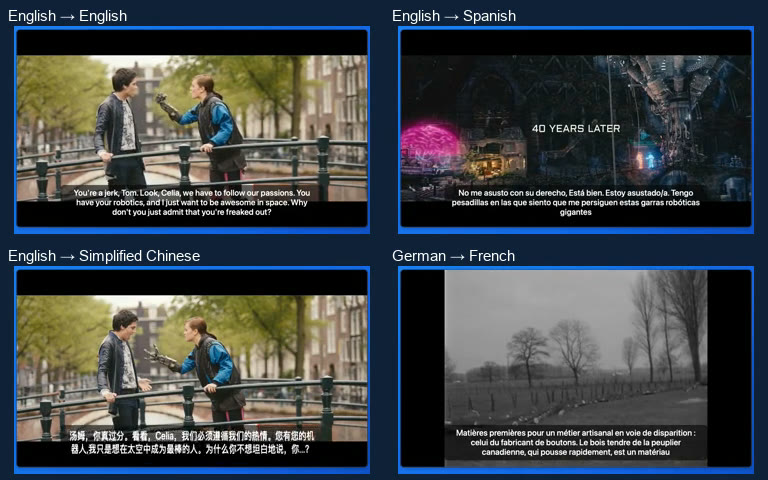
Watch this step in the Live Subtitles guide 0:09
What gets saved
Only the caption text, and only while Text Log is on. Audio is never written to disk, and recognition runs on your Mac. The Captions tile (or ⌃⌘H) puts the captions out of sight while transcription and the log carry on, and the Output tile shows them in another language if you’d rather read them that way.