Choose the language you want to read
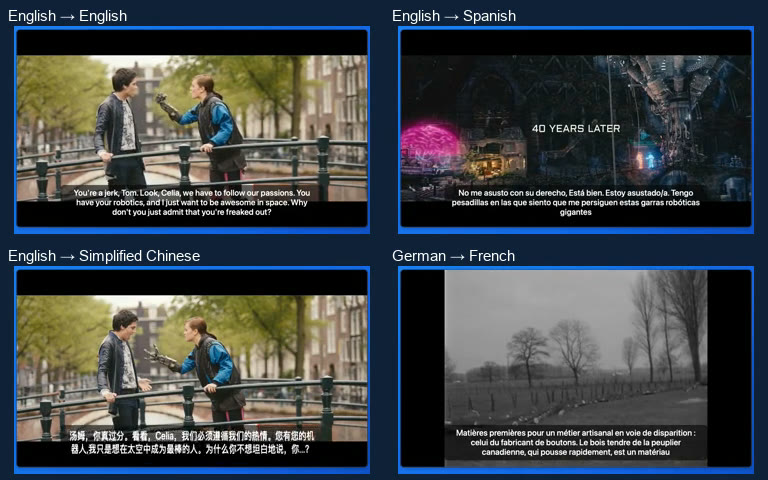
The input is the language being spoken; the output is the language you want to read. Leave input on Auto-detect to follow the speech automatically, or choose a specific input in Switch Models. English is not required on either side.
The catalogue has 100 input languages and 163 output choices, including Simplified and Traditional Chinese. Coverage depends on the speech and translation models and the language pair. The chooser shows compatible models and explains unsupported pairs.
- Open Live Subtitles from the menu bar. On first setup, choose your languages and models. Check the download sizes, then choose Download & Use. Models download only when you authorize them.
- Click the Output tile to open Translate to. Choose a common language or search the full output list by name or language code. A dimmed choice opens Switch Models with that output selected for review; apply compatible models before starting.
- Turn on captions and play your video, call or livestream. Translated subtitles appear over your screen.
- Turn captions off when you finish. Use Subtitle Appearance to adjust text size and background, or Displays to choose where subtitles appear.
Chinese, Hindi and non-English language pairs
To translate a YouTube video or meeting into Chinese or Hindi subtitles, play it in your browser or meeting app and choose Simplified Chinese, Traditional Chinese or Hindi as the output. For German-to-French translation, choose French output and let Auto-detect identify German, or set German input explicitly. The same process applies to other supported pairs.
Choosing the same input and output language gives transcription in that language. Choose a different output to translate. If your current speech model cannot support the pair, choose compatible models in Switch Models and apply them before starting.
Offline translation in any app
Once your models are downloaded, speech recognition and translation run locally on Apple silicon. Audio is never saved or uploaded. It works with the system audio from browsers, video players and meeting apps; your speakers and headphones work normally.
Offline translation means the speech and translation models run on your Mac; an online video or call still needs its own internet connection. Live Subtitles translates what your Mac plays, not your microphone, and does not join meetings as a bot. You can optionally save the caption text with timestamps using Text Log.