How-to guide · 1:25
How to use Key Remappings
Remap a key by clicking it on the keyboard, record a shortcut, make a shortcut open an app or quit all your apps, pause a mapping, and keep it all working in the background.
Step by step
Using Key Remappings
-
Remap a key with two clicks
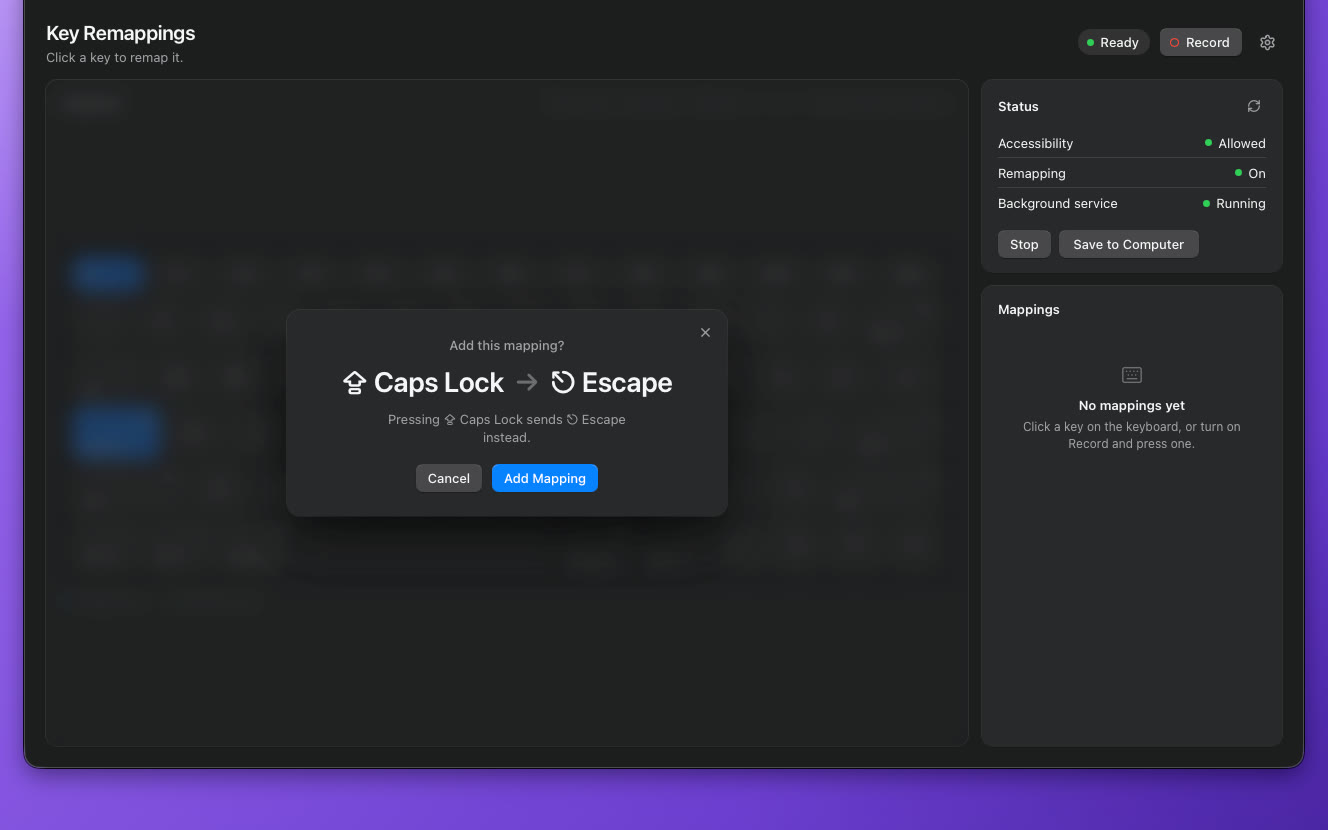
Make Caps Lock work as Escape. Click Caps Lock on the keyboard, then click Escape, and Confirm the mapping.
-
Record a shortcut
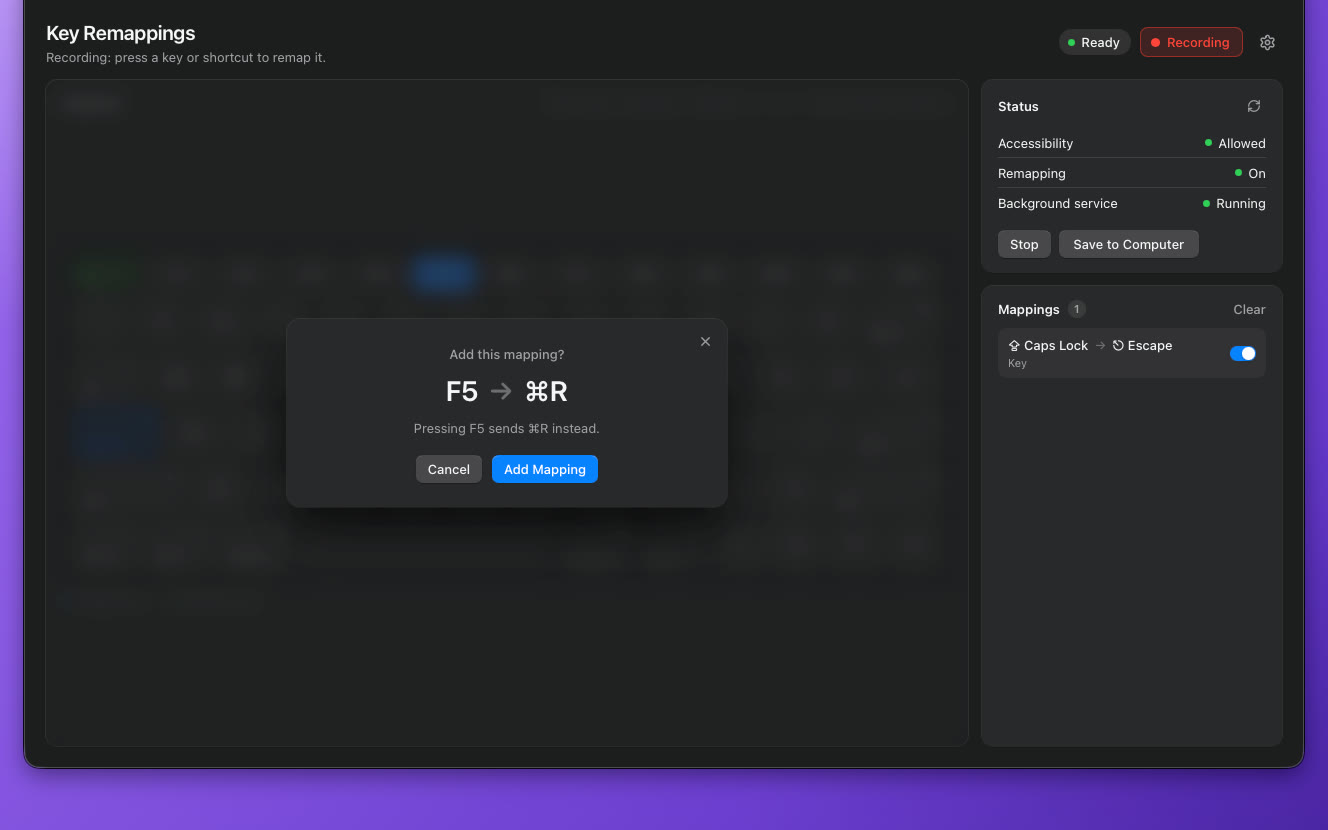
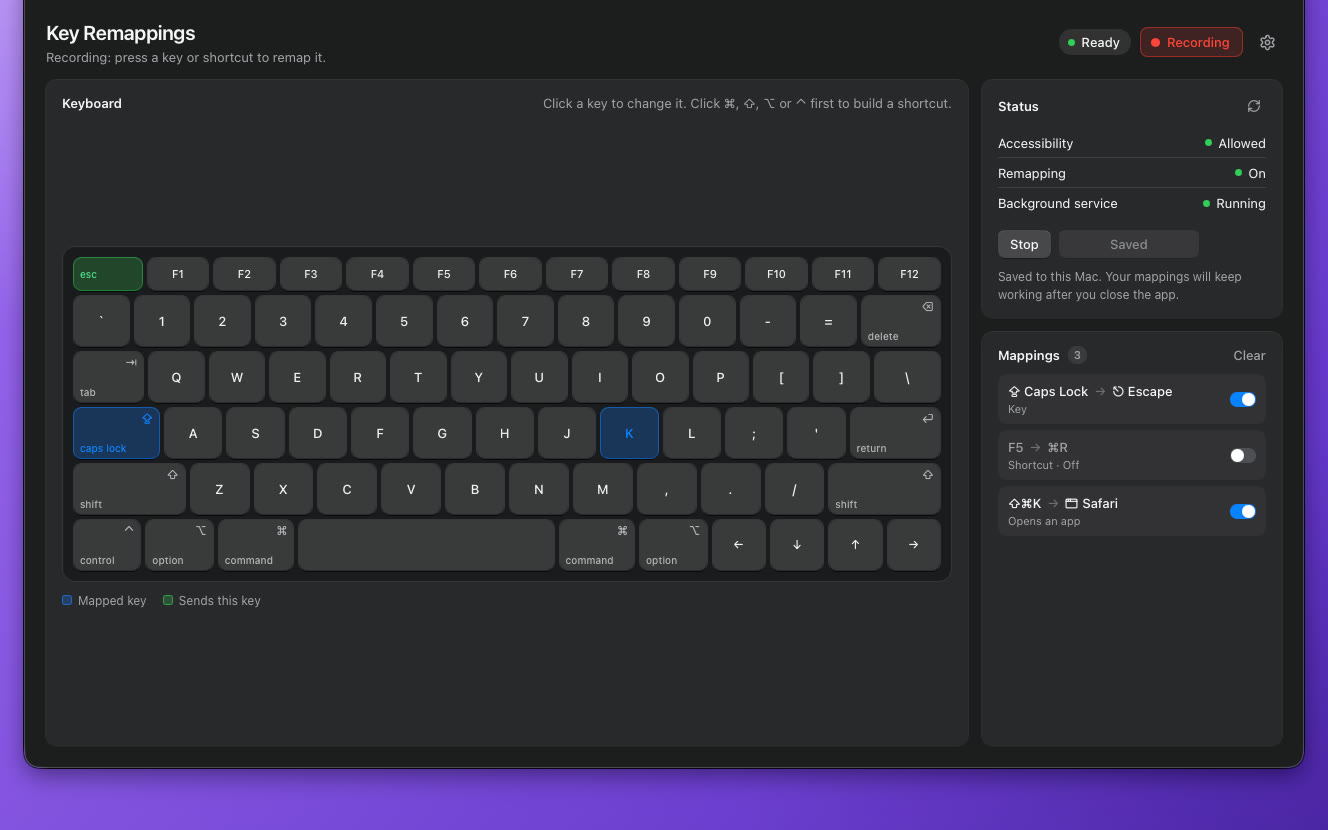
Shortcuts work too. Turn on Record, press the shortcut you want to change, then press what it should send. Modifiers and function keys are captured as you press them.
-
Open an app with a shortcut
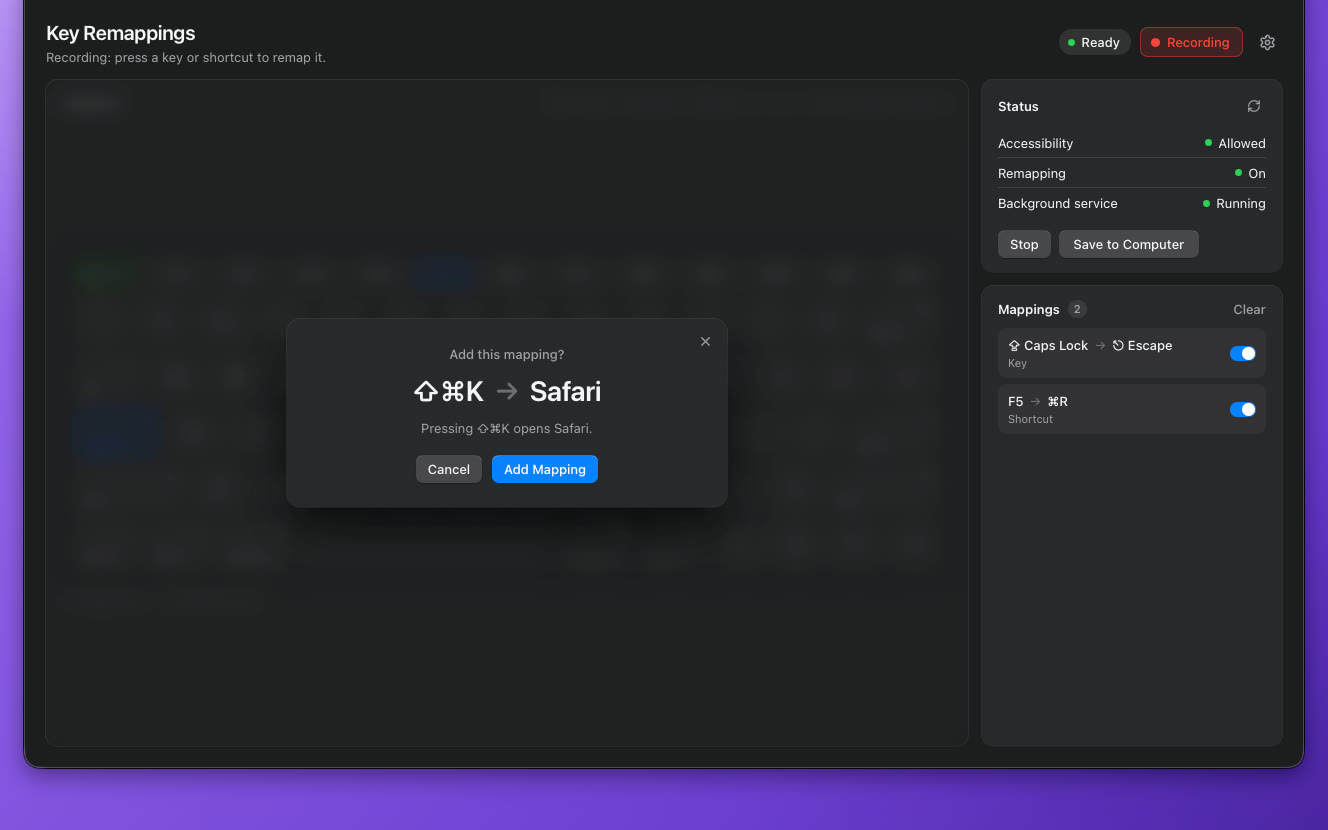
A shortcut can open an app instead, or force quit all your apps at once. Press the trigger, choose Open app, and pick the app.
-
Your mappings
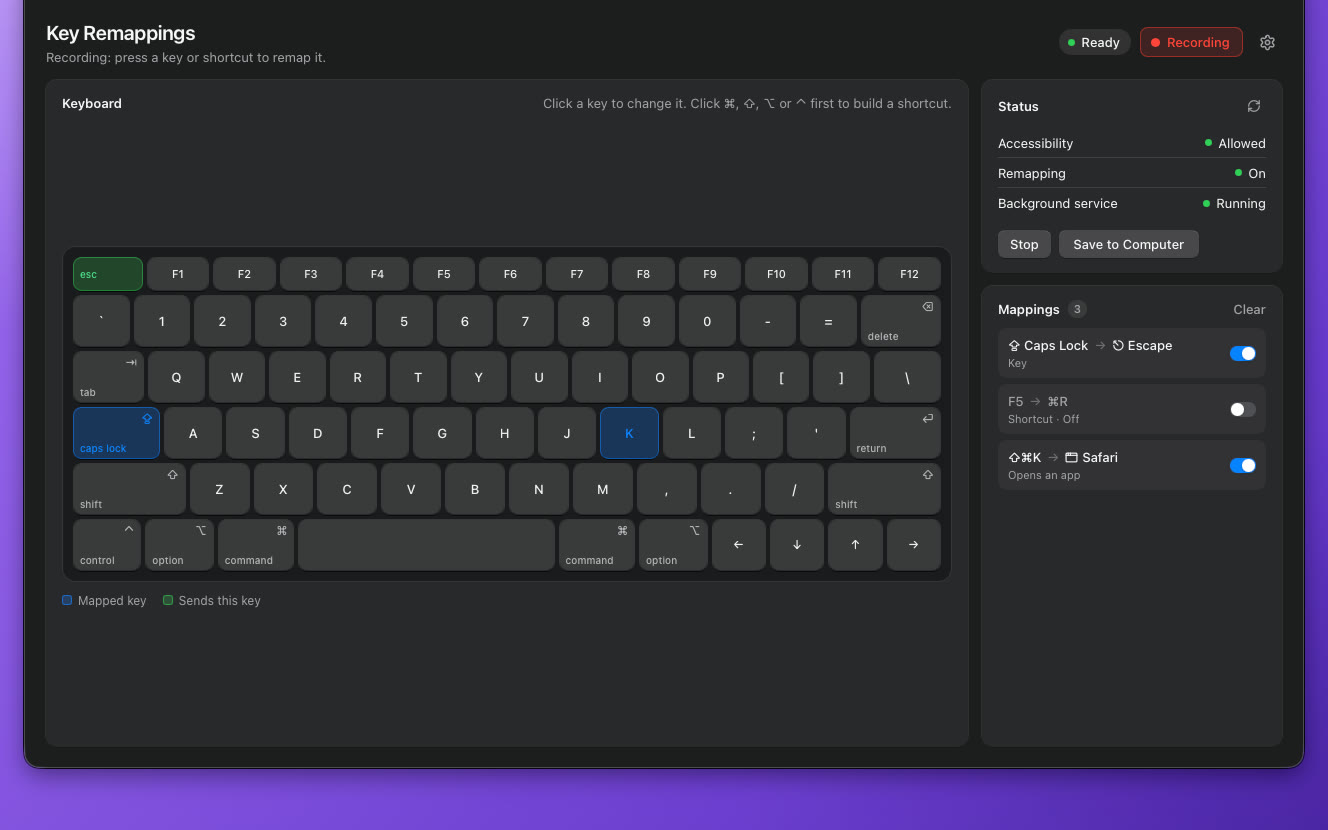
Every mapping is listed, and the keys it uses light up on the keyboard. Pause one with its dot, or delete it with a click.
-
Keep it working in the background
Choose Save to Computer. While it says Saving, wait for setup to finish. Saved means your mappings will keep working after you close the app, and every time you log in. Change a mapping, and Save to Computer appears again.
-
Allow keyboard access
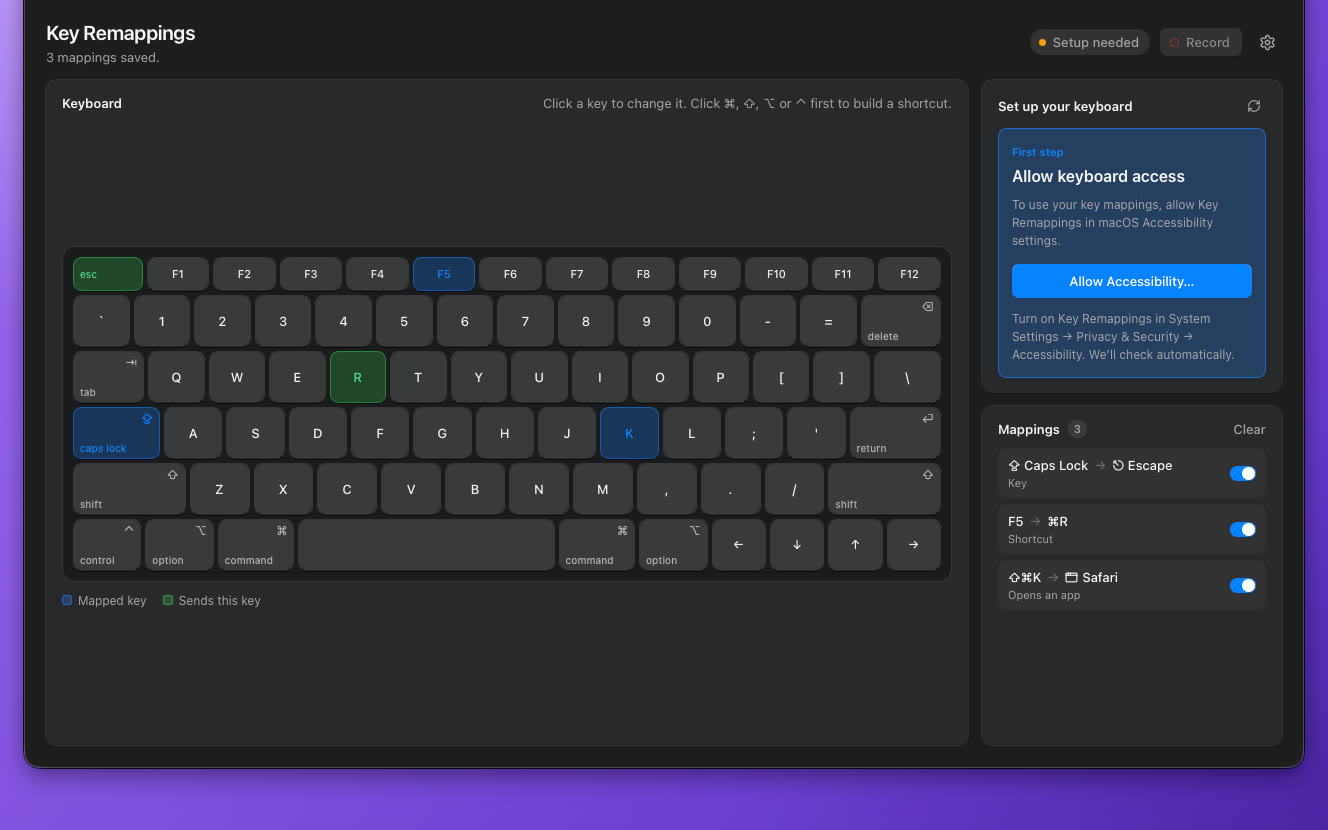
On your first launch, choose Allow Accessibility. Turn on Key Remappings in System Settings, under Privacy and Security, Accessibility. Return to the app. It checks automatically, then you can use your mappings and save them to this Mac.
-
Settings
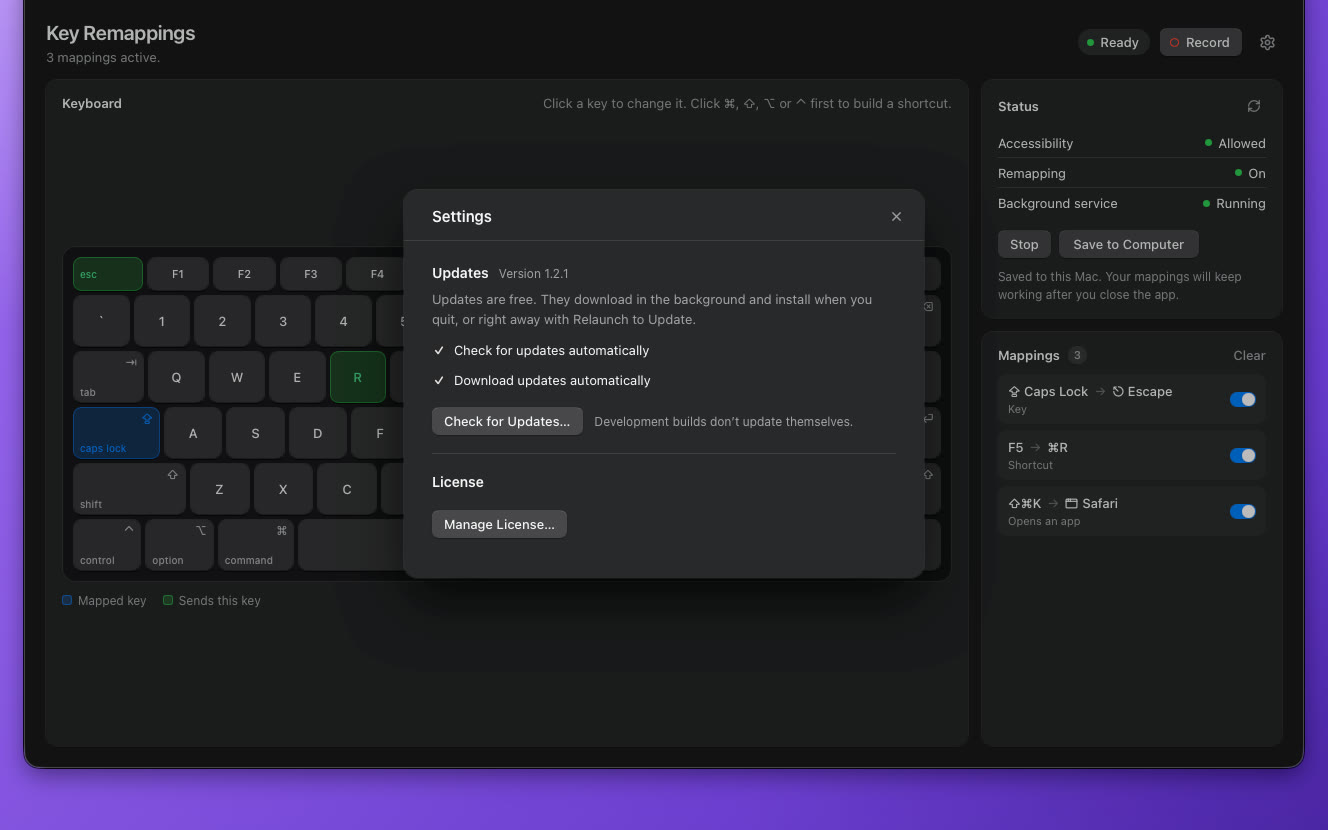
Settings has automatic updates and your license. Everything else stays on your Mac: key presses are replaced as they happen and never recorded.
Key Remappings · $4.99
Turn any key or shortcut into another one, or into an app — from a picture of your keyboard. Try it free for 7 days.
More about Key RemappingsHow to remap Caps Lock to Escape on a MacHow to remap keys on a MacHow to open an app with a keyboard shortcut on a MacAll how-to guides