How-to guide · 1:12
How to use Keyboard Brightness
Adjust your MacBook's keyboard backlight from the menu bar. Use the slider for a comfortable brightness, jump to off or full brightness, and open keyboard settings.
Step by step
Using Keyboard Brightness
-
Open the card
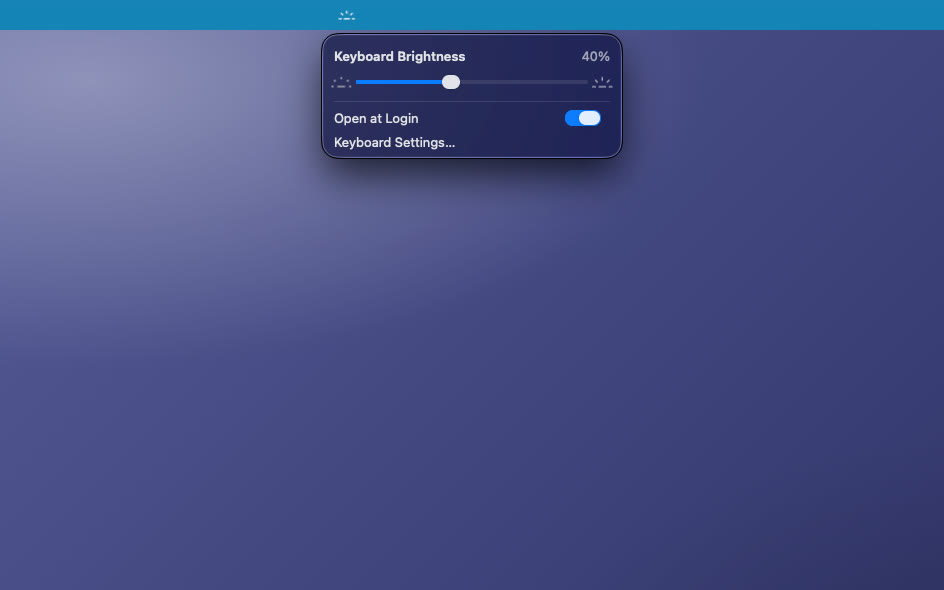
Keyboard Brightness puts your MacBook's keyboard backlight in the menu bar. Click its icon to open the slider.
-
Set the brightness
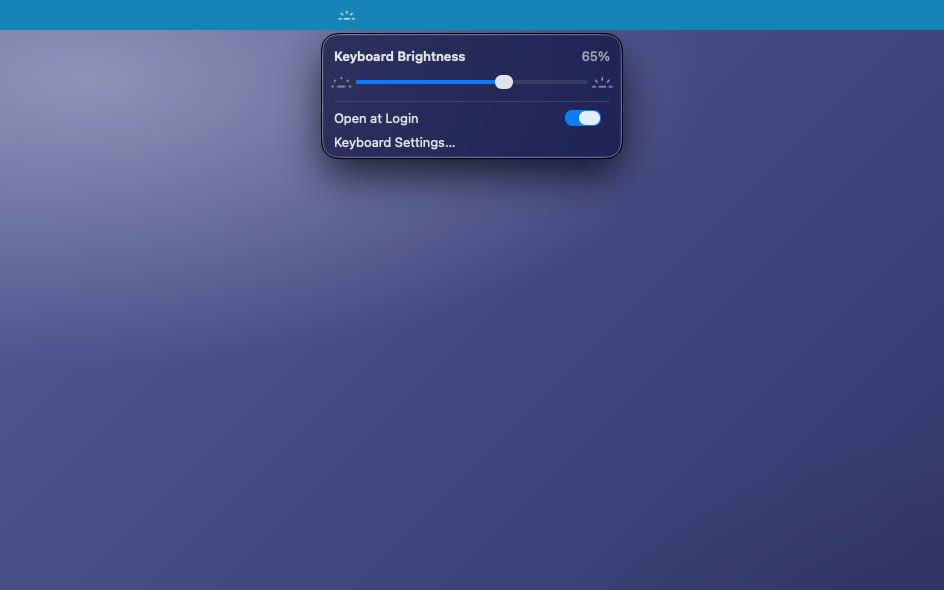
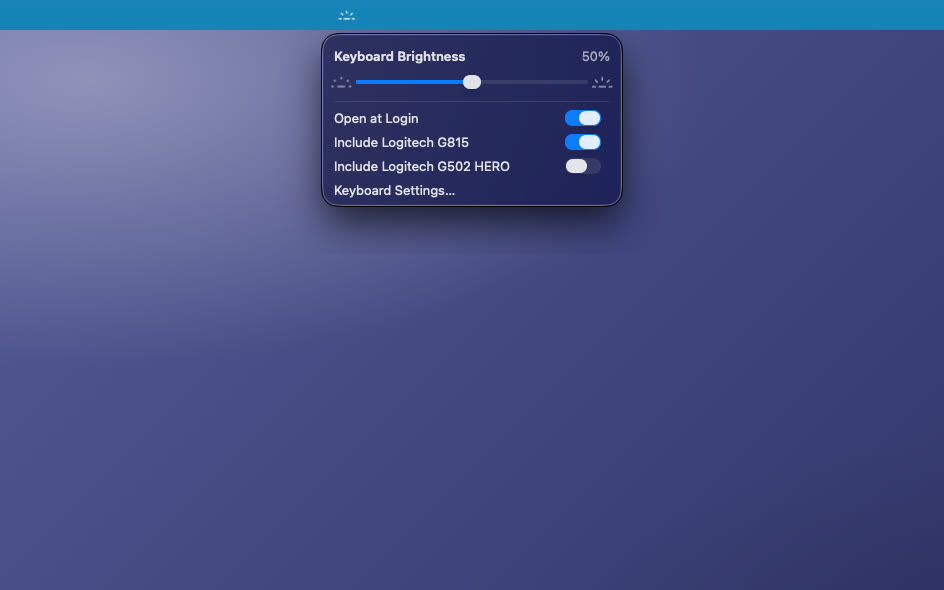
Drag the slider to choose a comfortable keyboard brightness. The percentage shows the current level, so you can dim the keys in a dark room or brighten them when you need them.
-
Off or full in one click
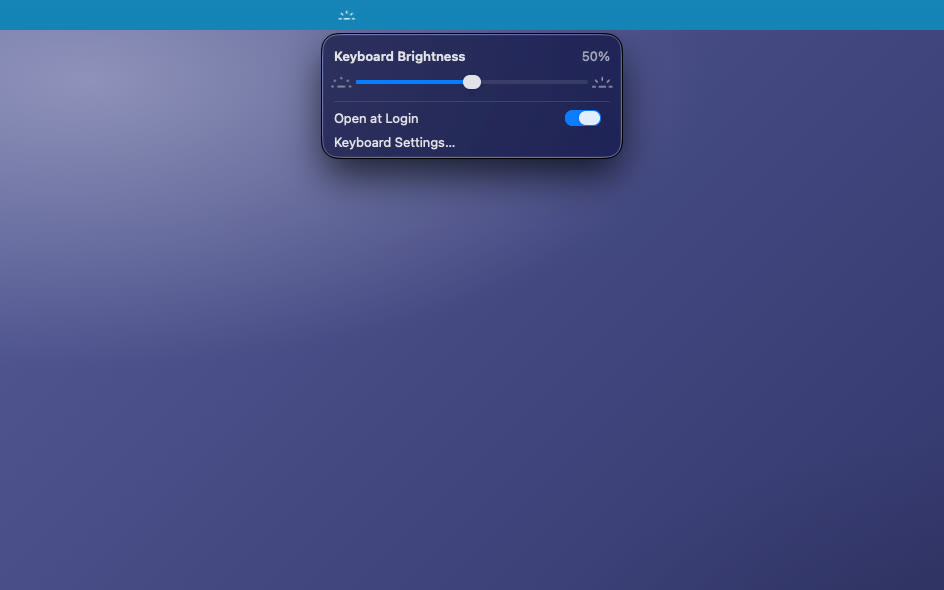
Click the left icon to turn the keyboard backlight off, or the right icon for one hundred percent. Drag the slider again whenever you want a level in between.
-
Open at Login and settings
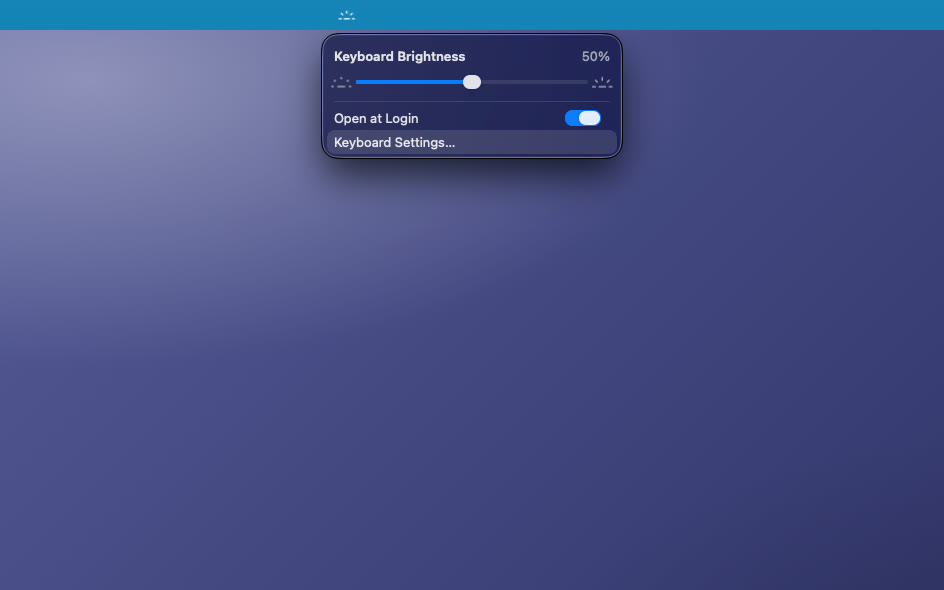
Open at Login starts Keyboard Brightness when you log in. Keyboard Settings… opens System Settings, where macOS handles automatic brightness and dimming the backlight when you're away.
-
License and updates
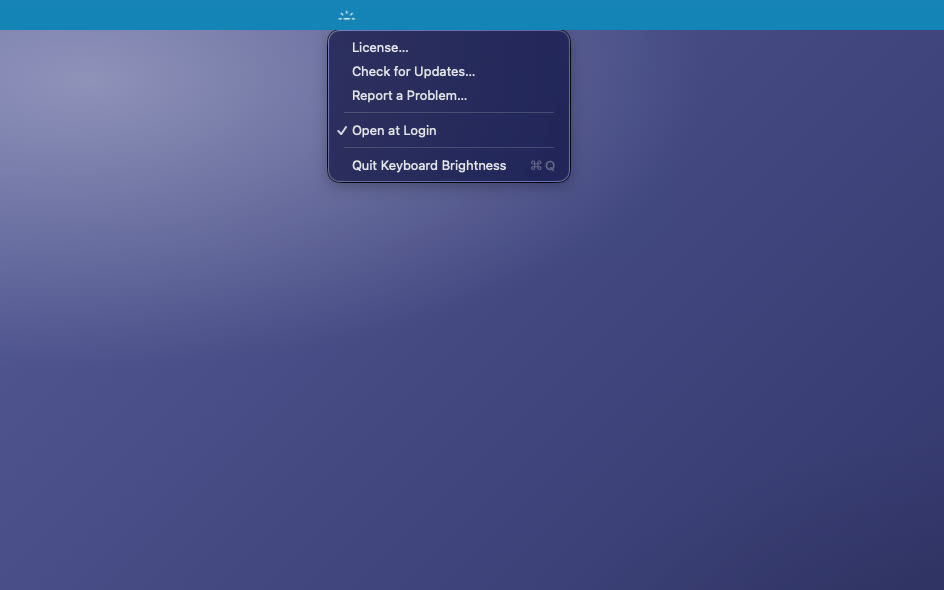
Right-click the icon for your license, Check for Updates…, Report a Problem…, and Open at Login. Quit is there too.
-
Optional external lighting
Supported external keyboards and Logitech RGB mice are discovered automatically. Switches appear only for detected devices. Enable one to follow the slider, or disable it to leave its lighting alone. The switch stays visible.
-
Close the card
To close the card, click anywhere outside it, click the icon again, or press Escape.
Keyboard Brightness · $1.99
One menu bar slider for your MacBook and supported external keyboard backlights. Try it free for 7 days.
More about Keyboard BrightnessHow to control external keyboard brightness on a MacHow to turn on the keyboard light on a MacBook Air or ProWhy does my MacBook keyboard light keep turning off?All how-to guides