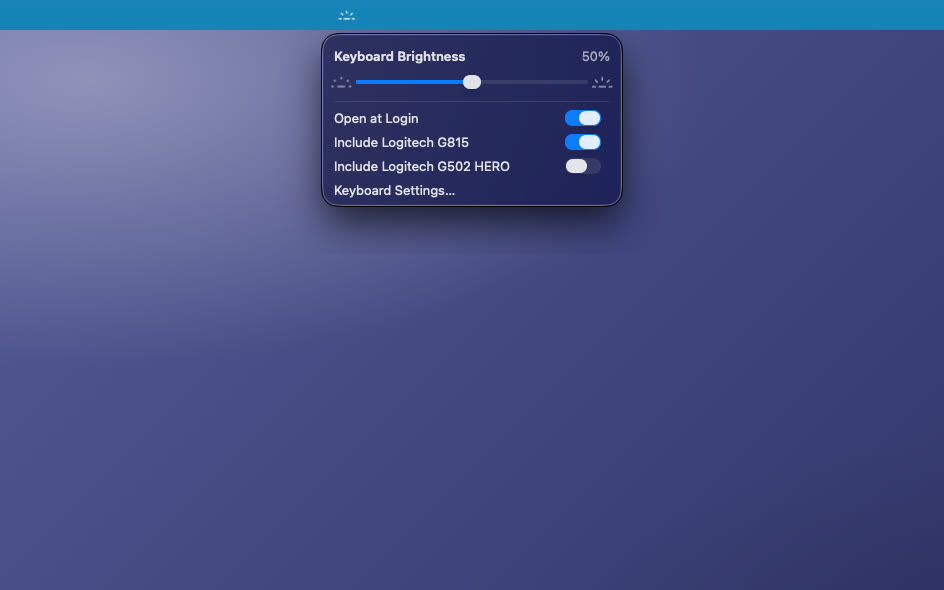
Which external keyboards work?
Logitech keyboards need HID++ Brightness Control, as on the G815, or Backlight2 version 3 or later. QMK keyboards need VIA or Vial, with firmware and a connection that expose their lighting controls. Support varies by model and wireless mode; a brand name alone does not guarantee compatibility.
Older Logitech G810 and G910 lighting is not supported. Razer, Corsair and SteelSeries keyboards with private lighting protocols are not supported. Apple’s external Magic Keyboards have no backlight to adjust.
Connect, include and adjust
Once the app discovers a supported keyboard, you decide whether the slider controls it.
- Connect your supported keyboard to the Mac. Keyboard Brightness checks at launch and discovers supported keyboards as they connect.
- Open the card from the menu bar icon and turn on the external-keyboard inclusion switch.
- For a directly connected or Bluetooth Logitech keyboard, allow Input Monitoring when macOS asks. Lighting shares the keyboard’s connection; the app ignores key input and reads only lighting replies.
- Drag the slider, or click either end for off or full brightness. Included external keyboards follow the same level; keyboards with fixed brightness steps use the nearest level.
Built-in and external backlights together
The slider still controls your MacBook’s built-in keyboard backlight. Turning off external inclusion leaves the external keyboard’s lighting alone. A supported external keyboard also works with a desktop Mac or a MacBook without a built-in backlight.
Discovery finds supported lighting controls, not every connected keyboard. If yours does not appear, check its firmware and connection mode against the requirements above.