Where macOS keeps the control
Every MacBook with a backlit keyboard has the same slider in System Settings: click Keyboard in the sidebar (you may need to scroll down), then drag Keyboard brightness. All the way to the left turns the light off; anywhere else turns it on.
There’s a quicker copy in Control Center. Click Control Center in the menu bar, click Keyboard Brightness, then drag the slider. If you don’t see the button, add it as described below.
Whether you have keys for it depends on the model. On a MacBook Air with Apple silicon and on the 14-inch and 16-inch MacBook Pro, the top row has keys for screen brightness, Dictation and Do Not Disturb — but none for the keyboard light, so there’s no key to press. On a MacBook Pro with a Touch Bar, expand the Control Strip and tap the keyboard brightness buttons. MacBook Neo’s keyboard isn’t backlit at all, so there’s nothing to turn on.
Keep it in the menu bar
With Keyboard Brightness shown in the menu bar, the slider is one click away. How you add it depends on your version of macOS.
On macOS Ventura, Sonoma or Sequoia, choose Apple menu → System Settings, click Control Center in the sidebar, then turn on Show in Menu Bar under Keyboard Brightness. Show in Control Center adds the button to Control Center if it’s missing.
On macOS Tahoe, click Control Center in the menu bar, click Edit Controls, then drag Keyboard Brightness to the menu bar.
With Keyboard Brightness
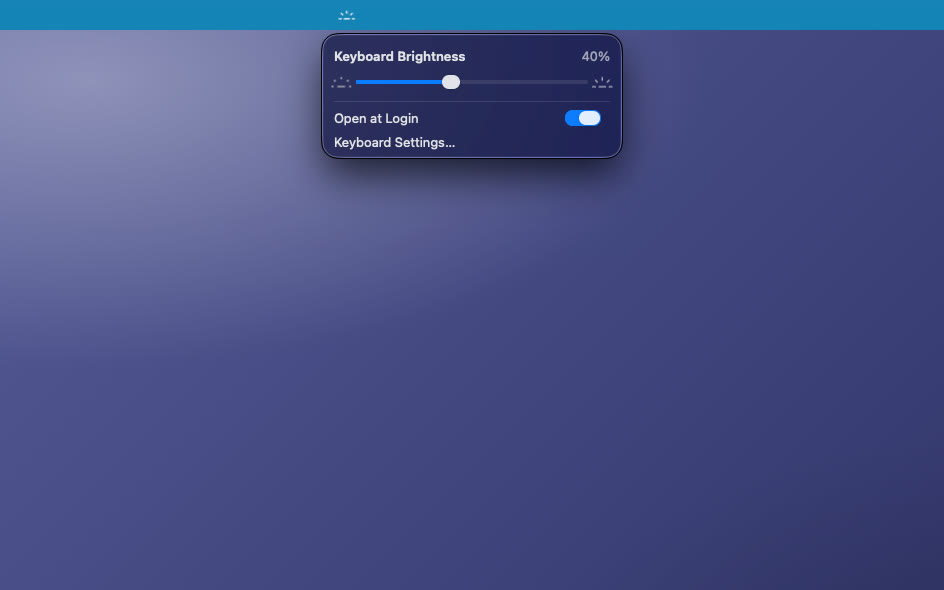
Keyboard Brightness gives you a proper slider for your MacBook’s keyboard backlight in the menu bar, with the exact percentage as you drag. It won’t give you a key to press — it puts the control one click away instead. It works with a MacBook’s backlit built-in keyboard, and supported Logitech or QMK keyboards with VIA or Vial. Supported external keyboards are found automatically; turn on their inclusion switch in the card. A directly connected Logitech keyboard needs Input Monitoring permission. Apple’s external Magic Keyboards have no backlight.
- Click the Keyboard Brightness icon in the menu bar to open the card.
- Drag the slider to set the brightness. The percentage updates as you go.
- To jump straight to full brightness, click the icon at the right end of the slider. The icon at the left end turns the light off.
- Click anywhere outside the card, or press Escape, to close it.