Change when macOS turns it off
Two settings decide when the keyboard light dims or goes out on its own. You can change either one, or both.
- Choose Apple menu → System Settings, then click Keyboard in the sidebar (you may need to scroll down).
- Click the pop-up menu next to “Turn keyboard backlight off after inactivity” and choose a longer time.
- If you’d rather the level stayed where you set it, turn off “Adjust keyboard brightness in low light”. With it on, macOS sets the level from the light around you, using a sensor near the camera.
- Drag Keyboard brightness to the level you want.
If it never comes on
Check the level first. Dragging Keyboard brightness all the way to the left — or holding the decrease brightness key, on keyboards that have one — turns the backlight off.
In daylight a lit keyboard is hard to see anyway. If the level seems wrong in a dim room, make sure nothing covers the top of the screen near the camera: that’s where the light sensor is.
And check the model. MacBook Neo’s keyboard isn’t backlit, so there’s no light to turn on, and Apple notes that this isn’t a service issue.
With Keyboard Brightness
Keyboard Brightness doesn’t override macOS. The inactivity and low-light settings stay in System Settings, and the app never changes the level on its own — opening or quitting it leaves your backlight where it was.
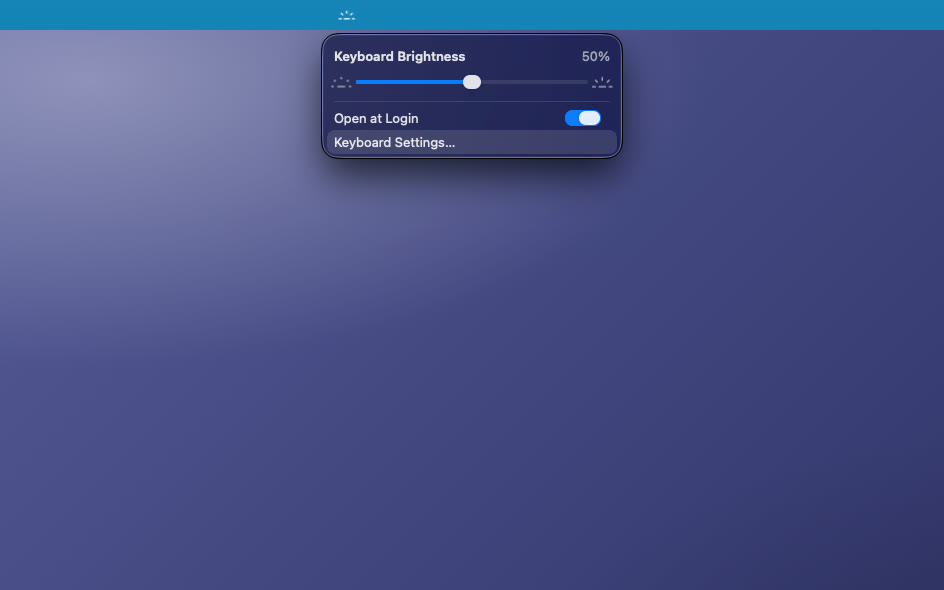
What it gives you is the real level at a glance. The card reads the actual backlight brightness each time you open it and keeps up while it’s open, so if it shows 0%, the light has been turned all the way down. It works with a MacBook’s backlit built-in keyboard, and supported Logitech or QMK keyboards with VIA or Vial. Supported external keyboards are found automatically; turn on their inclusion switch in the card. A directly connected Logitech keyboard needs Input Monitoring permission. Apple’s external Magic Keyboards have no backlight.
- Click the Keyboard Brightness icon in the menu bar and check the percentage.
- Drag the slider up, or click the icon at the right end of the slider for 100%.
- Click Keyboard Settings… to open System Settings and change when macOS turns the light off.